Smart-Home Hub Keeps Disconnecting? How to Stabilize It
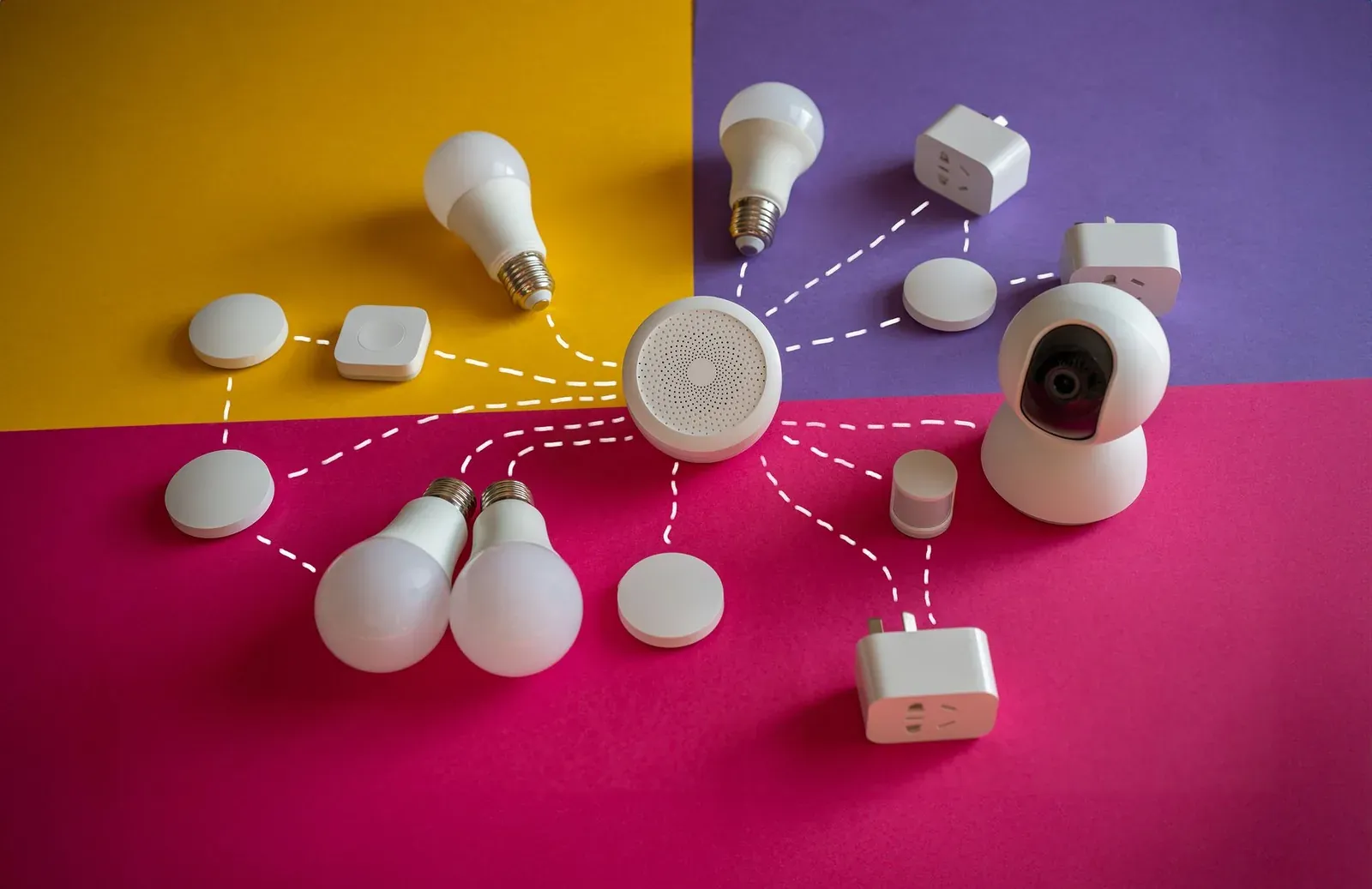
If your smart home hub keeps disconnecting, the cause is almost always one of four things: an unreliable power or network cable, a weak or congested Wi-Fi signal, a router setting that drops the hub's connection, or stale firmware. The fastest path to a stable hub is to rule those out in order, starting with the physical layer and working up to the network and software. Below is a practical, research-based sequence drawn from manufacturer setup guides, platform help centers, and well-documented community-forum patterns.
First, confirm what "disconnecting" actually means
Before changing anything, pin down which connection is dropping. Hubs sit between two networks, and they fail differently:
- Hub-to-internet drop: The app shows the hub as "offline" or "unreachable," and nothing responds remotely. This is a power, cable, or Wi-Fi/router problem.
- Hub-to-device drop: The hub itself stays online, but individual lights, sensors, or plugs go "unresponsive." That points to the device radio (Zigbee, Z-Wave, or Thread) or device range, not the hub's internet link.
If only specific devices drop while the hub stays green, your issue is on the device side rather than the hub's uplink. For that pattern, see our guide on Alexa devices that stop responding. The rest of this article focuses on the hub losing its own connection.
Step 1: Rule out power and cables
It is unglamorous, but loose or marginal hardware causes a surprising share of "random" disconnects. Manufacturer support docs consistently put this first.
- Reseat the power supply. Use the original adapter. Underpowered third-party USB chargers can cause a hub to brown out and reboot under load, which reads in the app as a disconnect.
- Avoid the smart plug trap. Do not run your hub through a smart plug or a switched outlet. A routine or an accidental tap can cut its power.
- Swap the Ethernet cable (for wired hubs) and try a different router port. A flaky cable produces intermittent, hard-to-diagnose drops.
- Feel for heat. A hub that is hot to the touch and drops out when warm may be overheating; give it airflow and keep it out of a closed cabinet.
Step 2: Prefer a wired connection, or strengthen the Wi-Fi one
If your hub has an Ethernet port, use it. A wired uplink sidesteps channel congestion, roaming, and signal-strength problems entirely, and it is the single most effective stability upgrade for hubs like the Aeotec/SmartThings Hub, Hubitat, or Homey Pro.
For Wi-Fi-only hubs, signal quality is what matters:
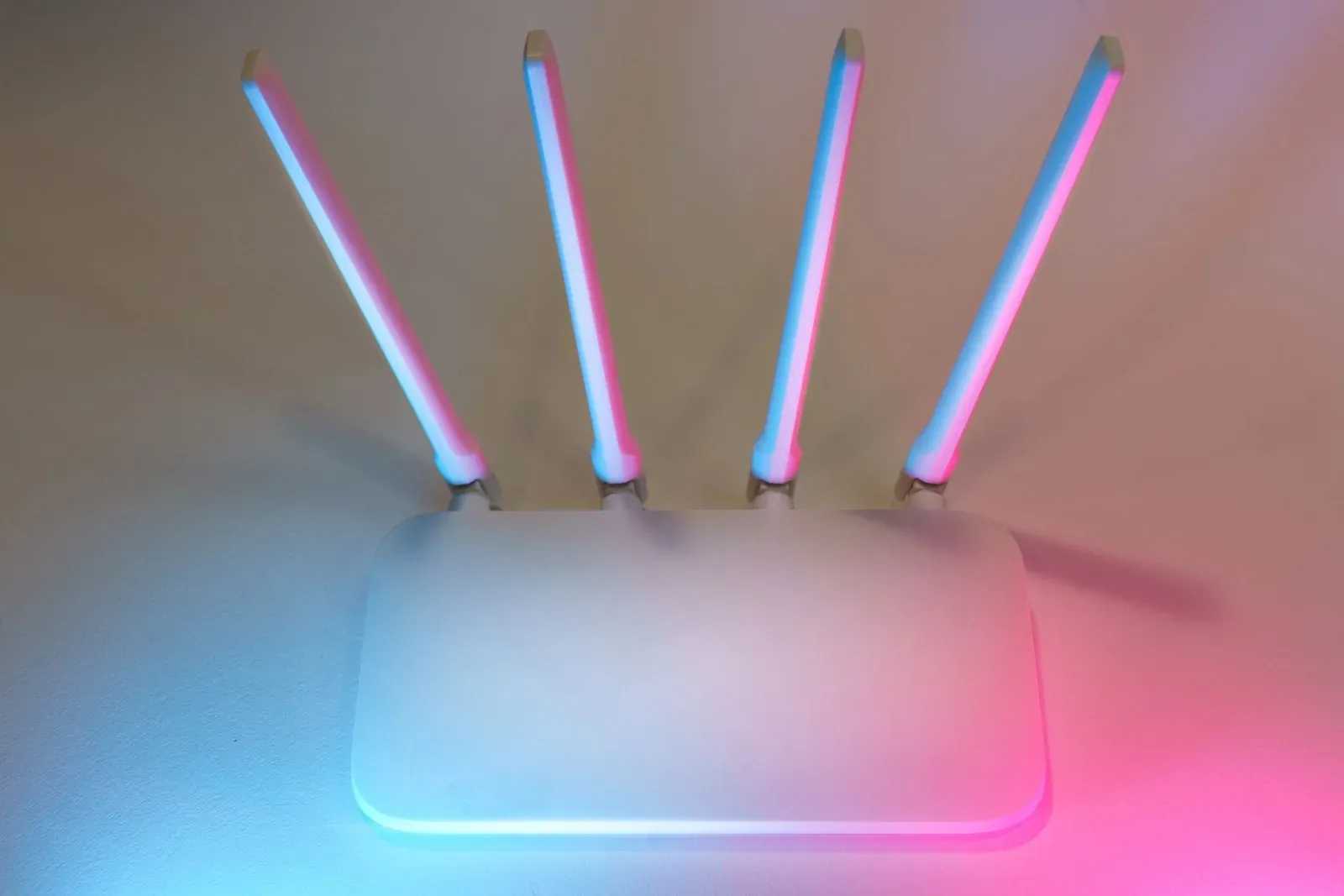
- Move it closer to the router or remove obstacles. Thick walls, metal, mirrors, and large appliances absorb 2.4 GHz signal, which is what most hubs use.
- Keep some distance from interference sources such as microwaves, baby monitors, and USB 3.0 devices, all of which crowd the 2.4 GHz band.
- Check whether the hub roams between mesh nodes. Some hubs handle handoff between mesh points poorly and drop during the switch (more on that below).
- 1Move the hub within clear line of sight of the router or nearest node
- 2Confirm it is on the 2.4 GHz band, not being pushed to 5 GHz
- 3Reserve a fixed IP for the hub in your router
- 4Update hub firmware, then leave it 48 hours to confirm stability
Step 3: Fix the router settings that quietly drop hubs
When a hub disconnects on a regular schedule (often overnight), the router is usually the culprit. Three settings cause most of it.
| Setting | Why it drops the hub | What to do |
|---|---|---|
| DHCP lease expiry | The hub's IP address changes when the lease renews, breaking its connection until it re-registers. | Assign a reserved/static IP to the hub by its MAC address. |
| Band steering / one merged SSID | The router pushes the 2.4 GHz hub toward 5 GHz, which it can't reliably use, causing repeated drops. | Temporarily split the bands into separate names and join the hub to the 2.4 GHz one. |
| Wi-Fi power saving / "green" mode | Aggressive router or AP power saving idles low-traffic clients like a quiet hub. | Disable Wi-Fi power saving / airtime fairness for that band. |
A reserved IP alone resolves a large share of nightly disconnects, because the hub keeps the same address across reboots and lease renewals. If you also struggle to get devices through initial pairing, our Wi-Fi setup troubleshooting guide covers the same band and SSID issues in more depth.
Step 4: Address mesh Wi-Fi roaming
Mesh systems are great for phones and laptops, but stationary hubs can get confused when the mesh decides to hand them between nodes. The hub briefly loses its link during the handoff and reports offline.
- Place the hub clearly closest to one node so it has no reason to roam.
- If your mesh app allows it, you can sometimes pin a device to a specific node, though many systems hide or remove this option, so don't count on it.
- Where possible, wire the hub by Ethernet into a mesh node, which removes roaming from the equation completely.
Thread-based setups behave differently: Thread builds its own self-healing mesh among mains-powered devices, separate from your Wi-Fi. If your problem is Thread devices rather than the hub's internet link, our explainer on the Thread border router and the difference between Matter and Thread will help you reason about it.
Step 5: Update firmware, then reboot in the right order
Outdated hub firmware is a documented cause of stability bugs, and updates frequently ship connectivity fixes. Open your hub's app, check for a firmware update, and apply it.
After updating, reboot the whole chain in sequence so everything re-registers cleanly:
- Power down the hub.
- Restart the router (and modem, if separate) and let it fully come back online.
- Power the hub back up last, and give it several minutes to reconnect.
If you have worked through all five steps and the hub still drops, note exactly when it happens (a fixed time of day points to the router; random drops under load point to power or heat) and contact the manufacturer's support with that pattern. A consistent schedule is the most useful clue you can give them.
Frequently asked questions
Why does my smart home hub go offline at the same time every night?
A predictable nightly drop almost always traces to your router: either the DHCP lease renewing and changing the hub's IP address, or a scheduled router reboot or maintenance window. Assigning the hub a reserved IP address resolves the most common version of this.
Should I connect my hub by Ethernet or Wi-Fi?
If the hub has an Ethernet port, use it. A wired connection removes Wi-Fi congestion, mesh roaming, and signal-strength problems in one move, and it is the most reliable option for a device that never moves.
Do I need a hub at all if I'm using Matter and Thread?
You still need a Thread border router for Thread devices, and a Matter controller (such as an Echo, a Nest, or a HomePod) to run them, but those roles are increasingly built into speakers and displays you may already own. Our guide to border routers you likely already have explains what counts.
Will a factory reset fix constant disconnects?
Rarely, and it carries real cost: on many hubs a reset erases your paired devices and automations. Because most disconnects come from power, network, or firmware, those fixes solve the problem far more often without the rebuild. Treat a reset as the final step.