Alexa Stopped Responding to Smart Home Devices? The Fix
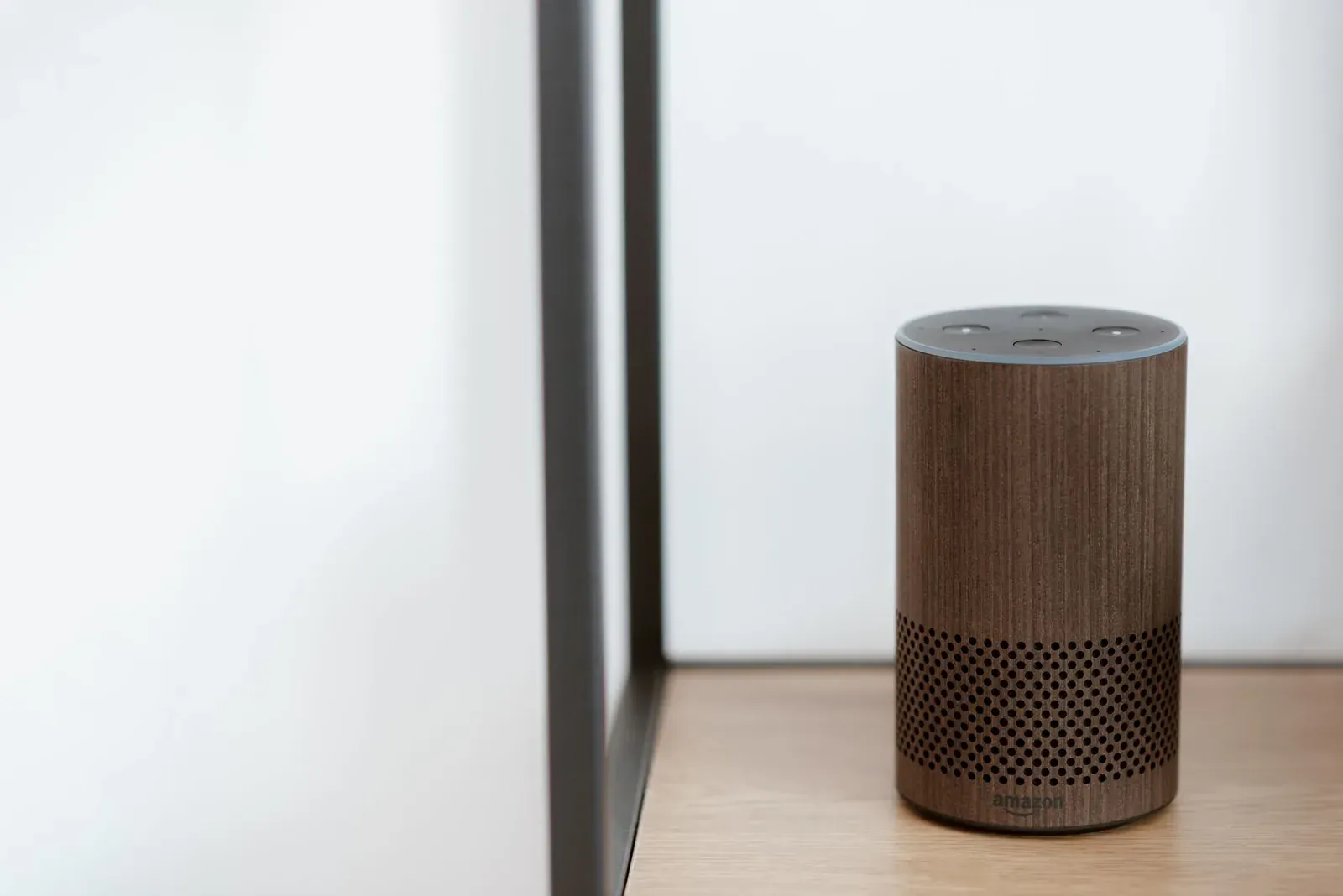
If Alexa suddenly answers with "that device isn't responding" or simply ignores commands that worked yesterday, the cause is almost always one of three things: a temporary cloud or Wi-Fi hiccup, a device that has dropped off your network, or a stale link between Alexa and the device's own app. Most cases clear up within a few minutes once you restart the right piece of hardware in the right order. Below is a structured walkthrough that starts with the fastest fixes and moves toward the deeper ones, so you spend the least time possible.
Start with the fast checks
Before changing any settings, rule out the temporary problems that fix themselves. A surprising number of "Alexa stopped responding" reports trace back to a brief internet outage or an Amazon service blip rather than anything in your home.
- Ask Alexa something simple like the weather. If she can't answer that either, the problem is your Echo's internet connection or an Amazon outage — not the smart device.
- Check the Echo's light ring. A spinning or solid red ring means it isn't connected to the cloud. A continuous orange ring means it's trying to connect to Wi-Fi.
- Confirm other internet works on your phone (using Wi-Fi, not cellular). If the whole network is down, fix that first.
- Wait five minutes and retry. Manufacturer and Amazon cloud services occasionally drop briefly, and commands resume on their own.
Confirm the device itself is online
Alexa is a voice layer on top of the device's own connection. If a smart bulb or plug has fallen off your Wi-Fi or its hub, Alexa has nothing to talk to. Open the device's native app — the one from the manufacturer, such as Kasa, Wyze, Philips Hue, or the brand's own app — and try to control it there.
- If it works in the native app but not through Alexa, the link between Alexa and that brand has gone stale. Skip ahead to "Refresh the connection in the Alexa app."
- If it doesn't work in the native app either, the device is offline. Power-cycle it (unplug for 10 seconds, or pull the smart bulb's power), and make sure its hub or bridge is powered and connected.
- If the device never reconnects, it may have lost its Wi-Fi credentials — a common issue after a router change or password update. Our guide to smart devices that won't connect to Wi-Fi covers this in depth.
Restart the right hardware, in order
Power-cycling works, but only when done in a logical sequence. Restarting from the device outward lets each layer find a clean connection as it comes back up.
- 1Power-cycle the smart device (and its hub) and let it fully reconnect
- 2Restart your Wi-Fi router and wait 2-3 minutes for all devices to rejoin
- 3Restart your Echo last, so it reconnects to a stable network
- The smart device first. Unplug it or cut its power for about 10 seconds. If it uses a hub or bridge (common with Zigbee, Z-Wave, or some Thread setups), restart that too.
- The router next. Unplug it for 30 seconds, then let everything reconnect. This clears the most common cause of intermittent drops: an overloaded or confused router. Give it a couple of minutes.
- The Echo last. Unplug it for 10 seconds and plug it back in. Because it reconnects after the network has stabilized, it's far less likely to land in a half-connected state.
Refresh the connection in the Alexa app
When a device works in its own app but Alexa still can't reach it, the integration needs a refresh. The exact wording moves around, so look for the equivalent options rather than a specific screen.
- In the Alexa app, open the device and remove (forget) it, then run device discovery again by saying "Alexa, discover devices" or using the add-device option.
- For devices added through a skill (many cloud-connected brands), go to the brand's skill in the Alexa app, disable it, then re-enable and re-link your account. This forces a fresh authorization token, which fixes a large share of "not responding" cases.
- For Matter devices, confirm the device still appears as connected; a Matter device shared across ecosystems can occasionally need re-commissioning. See how to add a Matter device to Alexa, Google or Apple Home.
When duplicates or groups are the real problem
Sometimes Alexa hears you fine but acts on the wrong thing. Re-running discovery can leave duplicate device entries, so a command lands on a phantom copy that isn't connected. Delete duplicates and keep one clean entry. Group and room assignments matter too — if a device sits in the wrong room, a command like "turn off the living room" may skip it. Our explainer on Alexa device groups, rooms, and devices shows how those layers interact.
Common causes at a glance
| Symptom | Likely cause | First fix to try |
|---|---|---|
| Alexa can't answer anything | Echo offline or Amazon outage | Restart Echo and router; wait |
| One device unresponsive, others fine | That device dropped off Wi-Fi/hub | Power-cycle the device; check its app |
| Works in brand app, not via Alexa | Stale skill link or token | Disable and re-enable the skill |
| Command hits the wrong device | Duplicate entries or wrong room | Delete duplicates; fix groups |
| Random, intermittent drops | 2.4 GHz congestion or weak signal | Move the device or router closer |
If only certain routines fail
If individual voice commands work but a scheduled or voice-triggered routine doesn't fire, the issue is usually the routine itself rather than the device — a disabled action, a changed device name, or a trigger that no longer matches. Open and re-save the routine, and confirm each action still points to a valid device. Our walkthrough on creating Alexa routines explains how to audit them step by step.
Frequently asked questions
Why does Alexa say "device isn't responding" but the device still works?
This almost always means the device is online but Alexa's cloud link to it has gone stale, or there's a duplicate entry pointing to nothing. Disable and re-enable the brand's skill (or forget and rediscover the device) to rebuild a fresh connection.
Do I need to factory-reset my smart device?
Rarely, and it should be your last resort. Try power-cycling, reconnecting it in its own app, and re-linking the Alexa skill first. Only factory-reset if the device won't reconnect to Wi-Fi at all, since a reset means setting it up from scratch.
Could my Wi-Fi router be the cause?
Often, yes. A router change, a new password, or a crowded 2.4 GHz band can knock multiple devices offline at once. If several devices stopped responding together, restart the router first and check whether your smart devices are on a band they support.
Does Matter make this less likely to happen?
Matter can reduce cloud-related drop-offs because many Matter devices control locally rather than through a brand's cloud, but it isn't immune — network issues and re-commissioning needs still apply. Our overview of Matter vs Thread explains how local control works.