Alexa Device Groups Explained: Rooms vs Groups vs Devices
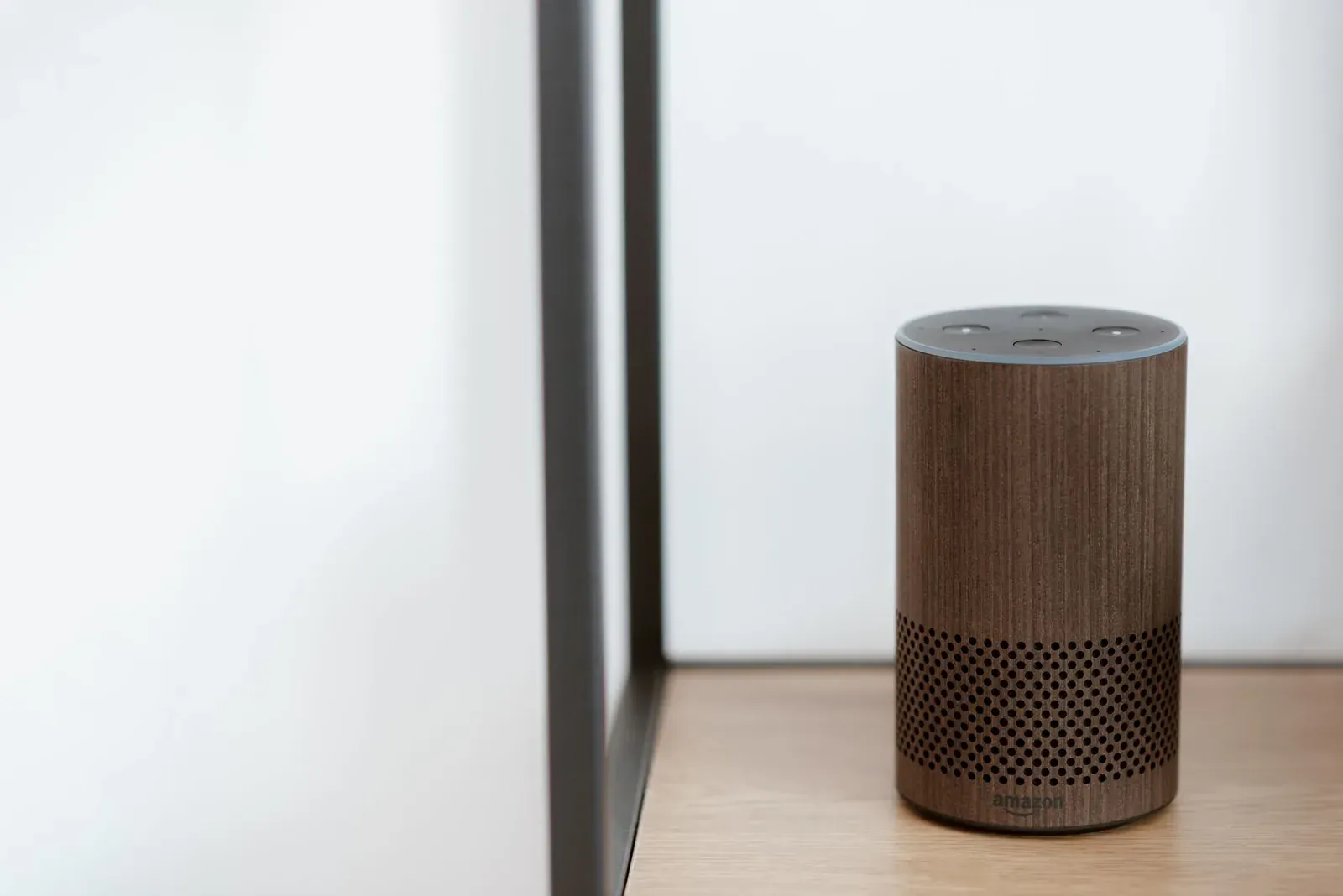
In the Alexa app, a device is a single item Alexa can see — one smart bulb, one plug, one lock, or one Echo speaker. A Group (which newer versions of the app often label a Room) is a labeled collection of those devices, usually tied to a physical space. The point of grouping is context: when you put your living-room Echo and your living-room lights in the same Group, you can say “Alexa, turn on the lights” and Alexa knows which lights you mean, because it controls the ones grouped with the Echo you spoke to.
Devices: the building blocks
Everything in Alexa starts as a device. When you add a smart bulb, smart plug, thermostat, or lock — whether through a skill, directly over your network, or via Matter — it appears in the Devices area of the Alexa app as an individual entry. Your Echo speakers show up here too, because to Alexa an Echo is both a voice endpoint and a controllable device.
Each device has its own name, and that name is what Alexa listens for. If you call a bulb “Corner Lamp,” you have to say “Alexa, turn on Corner Lamp.” That works, but it doesn’t scale: nobody wants to recite five device names to light one room. Grouping solves that.
Groups and Rooms: the same idea, evolving labels
Amazon has gradually shifted its wording from “Groups” toward “Rooms,” and depending on your app version you may see either. Functionally they describe the same thing: a named set of devices you want to manage and address together. A Room/Group can contain:
- One or more smart-home devices (lights, plugs, switches, a thermostat)
- One or more Echo devices physically located there
- Optionally a Fire TV or other supported endpoint
Two useful behaviors come from this. First, contextual control: when an Echo is part of a Room, generic commands spoken to that Echo — “turn off the lights,” “set it to 50%” — act on the devices in that same Room without you naming anything. Second, collective control from anywhere: you can say “Alexa, turn on the Kitchen” (or “Kitchen lights”) from any Echo in the house and the whole group responds.
Device groups vs multi-room music groups
This is where most confusion starts, because Alexa uses the word “group” for two different things. A device (or smart-home) group is the room-style bundle described above. A multi-room music group is a separate construct that only ever contains Echo speakers, and its sole job is to play the same audio in sync across several rooms when you say something like “Alexa, play jazz everywhere.”
They’re created and used differently, and mixing them up leads to “why won’t my speakers play together” or “why did all my lights turn on” moments.
| Aspect | Device group / Room | Multi-room music group |
|---|---|---|
| What it contains | Lights, plugs, locks, thermostats, plus Echo(s) | Echo speakers only |
| Main purpose | Control devices by room or together | Play synchronized audio across rooms |
| Typical command | “Turn on the Kitchen” | “Play music in Downstairs” |
| Enables context control | Yes (Echo hears “the lights” as room lights) | No |
- Bundles smart-home devices with an Echo
- Lets you control a whole room at once
- Only contains Echo speakers
- Exists purely to sync audio across rooms
Why grouping is worth the few minutes
Beyond convenience, Groups underpin a lot of Alexa’s smarter behavior:
- Natural commands. “Alexa, turn it up” or “dim the lights” only make sense when Alexa knows which room you’re standing in.
- Cleaner routines. When you build Alexa routines, you can target a whole Group instead of listing every device, so a “Good Night” routine stays readable.
- Fewer name collisions. Grouping reduces how often you need long, unique device names.
- 1In the Alexa app, open the Devices area and choose to add a Group or Room
- 2Name it after the physical space and add your smart-home devices
- 3Add the Echo that lives in that room so context commands work
- 4Save, then test with a generic command like “Alexa, turn on the lights”
Common pitfalls and how to avoid them
A few patterns show up repeatedly in Amazon’s help material and in community forums:
- Forgetting to add the Echo to the Room. If the speaker isn’t in the group, “turn on the lights” has no context to work from and Alexa may ask which lights you mean.
- A device in too many groups. Putting one bulb in several overlapping Rooms makes contextual commands ambiguous. Keep each device in the room it physically occupies.
- Group name equals device name. If a Group is “Office” and a plug is also “Office,” Alexa can’t tell which you mean. Give them distinct names.
- Setup never finished. A device that won’t join a group is often a device that never fully connected in the first place — see our guide on a smart device that won’t connect to Wi-Fi during setup.
Where Matter and Thread fit in
Grouping behavior is the same no matter how a device connects — Wi-Fi, Zigbee through an Echo hub, or Matter over Thread. Once a device is recognized by Alexa, it can join a Room exactly like any other. Matter mostly changes how a device gets added, not how you organize it afterward. If you’re sharing one device across ecosystems, our piece on Matter multi-admin explains how the same device can sit in Alexa, Google, and Apple Home at once — though each platform keeps its own separate room/group structure.
Frequently asked questions
What’s the difference between a Group and a Room in Alexa?
They’re effectively the same feature under different labels. Amazon has been migrating its terminology from “Groups” to “Rooms,” so newer app versions tend to say Room. Both describe a named bundle of devices, ideally including the Echo that lives in that space.
Can one device be in more than one group?
Technically yes, but it’s usually a bad idea for room-style groups, because it makes contextual commands ambiguous. A device generally belongs in the one room where it physically sits. The exception is intentional overlap — for example, a Group like “All Lights” that spans the house.
Why does “turn on the lights” control the wrong room?
Almost always because the Echo you spoke to isn’t grouped with the lights you expected, or a device is in multiple rooms. Check that each Echo is in its own room and that lights aren’t shared across groups they shouldn’t be.
Do I need a hub to use Alexa groups?
No. Groups are an organizational feature in the Alexa app and don’t require any hub. Individual devices may need a bridge or a Thread border router to connect in the first place, but grouping itself happens in software once devices are recognized.