How to Create Alexa Routines (Step by Step)
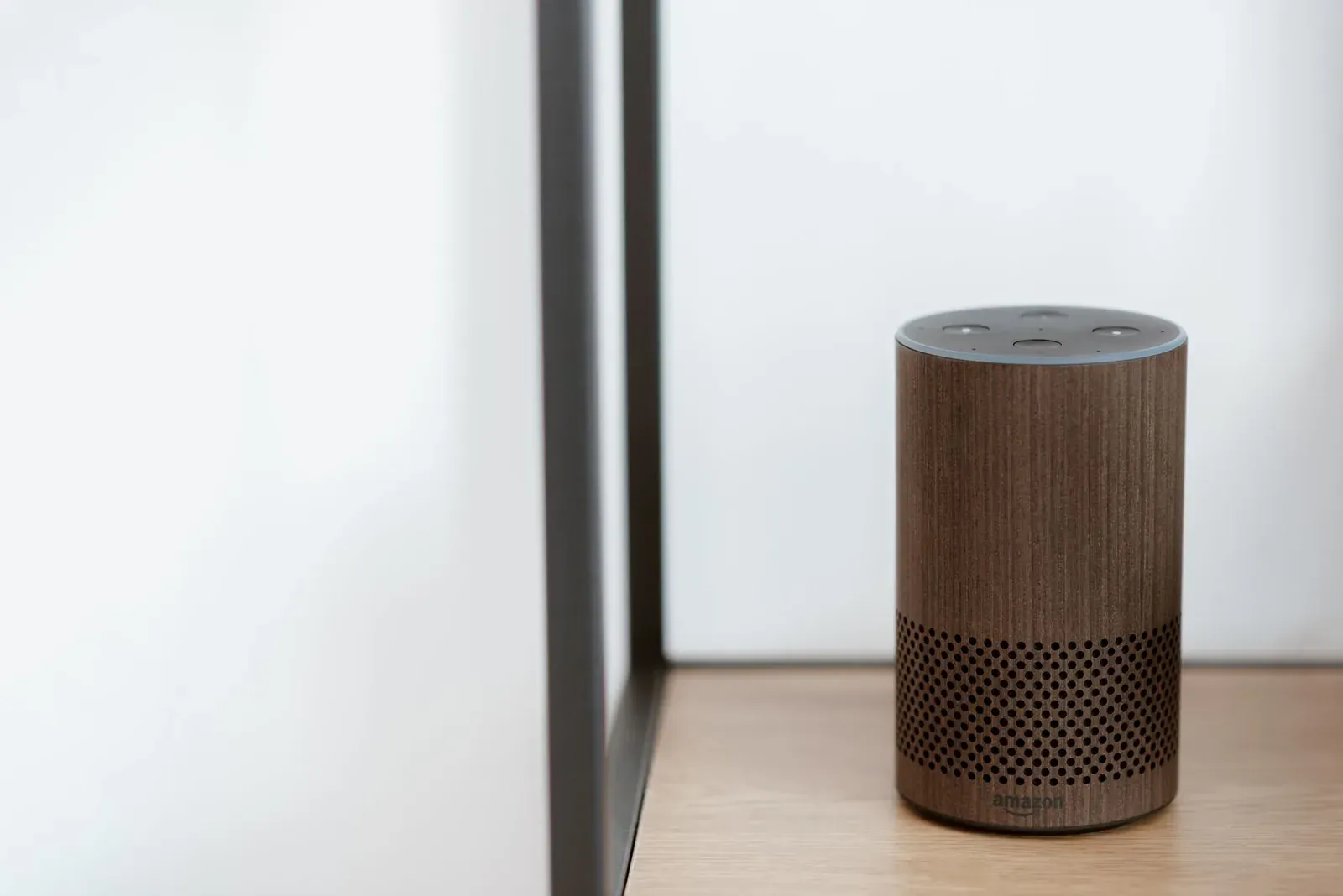
To create an Alexa routine, open the Alexa app, go to the More menu (often a three-line or grid icon), tap Routines, then the + button to start a new one. You give the routine a name, choose When this happens (the trigger), add one or more actions under Add action, pick which device responds, and save. A routine is simply a saved chain of "if this, then that" instructions that Alexa carries out automatically, so you don't have to issue each command by hand.
Routines are where Alexa stops being a single-command assistant and starts behaving like a small home automation system. The mechanics are the same whether you want a single light to turn on at sunset or a multi-step "Good morning" sequence that reads your calendar, reports the weather, and starts the coffee maker. Below is the full process, plus the trigger options that matter and the reasons routines sometimes fail to run.
Before you start: what a routine needs
Every routine has two required parts and one that's easy to overlook:
- A trigger — the event that starts the routine (a spoken phrase, a time, a sensor, and so on).
- At least one action — what Alexa actually does in response.
- A responding device — the specific Echo (or other Alexa-enabled speaker) that performs spoken or audio actions. If you skip this, Alexa picks a default that may not be the room you expect.
Any smart devices you want a routine to control must already be added to the Alexa app and working on their own first. If a plug or light isn't responding to a direct voice command, a routine won't fix that — sort the device out before automating it.
Step by step: create your first routine
- 1Open Alexa app and go to More > Routines
- 2Tap + and name the routine
- 3Set the trigger under "When this happens"
- 4Add one or more actions
- 5Choose the responding device and save
- Open the Routines area. In the Alexa app, tap More, then Routines. (Amazon moves menu items around between app versions, so look for "Routines" rather than a fixed screen position.)
- Start a new routine. Tap the + in the corner. Give it a clear name like "Bedtime" so you can find it later — the name is just a label and doesn't affect how it runs.
- Set the trigger. Tap When this happens and pick a trigger type (covered in the next section). For a voice trigger, type the exact phrase you'll say after "Alexa."
- Add actions. Tap Add action and choose what should happen — control a device, say a phrase, play music, adjust the thermostat, or send an announcement. Add as many as you like; Alexa runs them in the order shown, and you can drag to reorder.
- Insert waits if needed. For sequences (lights on, then a 30-second pause, then music), add a Wait action between steps so things don't all fire at once.
- Pick the responding device. Near the bottom, set the device that speaks or plays audio. Choose a named Echo for predictable results, or "the device you speak to" so the response comes from whichever Echo heard you.
- Save. Tap Save. Test it right away — say the phrase or trigger the event — so you can fix issues while the setup is fresh.
Choosing a trigger
The trigger is what makes a routine useful, and Alexa offers several. You can only set one trigger per routine, so if you want the same actions to fire two ways, build two routines that share the same actions.
| Trigger type | What starts it | Good for |
|---|---|---|
| Voice | A phrase you say after "Alexa" | On-demand scenes like "Movie time" |
| Schedule | A set time, optionally repeating on chosen days | Wake-up and bedtime automations |
| Sunrise / sunset | Local daylight times, with optional offset | Outdoor and evening lighting |
| Device / sensor | A motion, contact, or smart-plug state change | Hallway lights, door alerts |
| Alarm dismissed | When you turn off an Echo alarm | Starting your morning automatically |
| Location | Your phone entering or leaving an area | "I'm home" and "I left" routines |
Sensor-based triggers depend on having compatible hardware connected. Many newer motion and contact sensors connect over Matter and Thread, which can simplify pairing — though whether you need extra hardware to bridge them is worth checking. Our guide to Thread border routers explains where that fits in.
Editing, disabling, and organizing routines
Back in More > Routines, your saved routines appear in a list. Tap any one to edit its trigger or actions, and use the toggle to enable or disable it without deleting — handy for seasonal automations like holiday lighting. To remove a routine entirely, open it and look for the delete option in the menu.
- Disable, don't delete, anything you'll want back later. Rebuilding a multi-step routine from scratch is tedious.
- Name by purpose, not by device, so a growing list stays readable.
- Review periodically. Old routines pointing at devices you've since removed are a common cause of silent failures.
When a routine won't run
Routines fail quietly — Alexa rarely tells you why — so work through the likely causes in order.
- Confirm the trigger is exact. Voice routines need the phrase said as written. Scheduled ones depend on the correct time zone in your app settings.
- Test each device directly. Ask Alexa to control the device on its own. If that fails, the problem is the device connection, not the routine.
- Check the responding device is online. A routine that announces or plays audio needs that specific Echo powered on and connected.
- Look for Wi-Fi drops. Many "my routine stopped working" reports trace back to a device that fell off the network. Our Wi-Fi setup troubleshooting guide covers the usual fixes.
- Re-save the routine. Opening a routine and saving it again can clear a stuck state after an app update.
Frequently asked questions
Can one routine control devices from different brands?
Yes. As long as each device is connected to Alexa and responds to direct commands, a single routine can mix brands — for example, dim a Philips Hue light, lock a smart lock, and start a robot vacuum in one sequence. Alexa treats them all as actions regardless of manufacturer.
Why does my routine respond from the wrong room?
Spoken responses come from the routine's selected responding device. If you didn't set one, Alexa uses a default. Open the routine, scroll to the device setting, and choose the Echo you want — or pick "the device you speak to" so it answers from wherever you triggered it.
Can I trigger a routine automatically without speaking?
Yes — schedule, sunrise/sunset, sensor, alarm-dismissed, and location triggers all run without a voice command. Voice is just one option among several, and the non-voice triggers are what make routines feel hands-free.
Is there a limit to how many actions a routine can have?
You can add many actions to a single routine, and they run top to bottom in order. The practical limit is usefulness: long chains are harder to troubleshoot, so splitting complex automations into a few focused routines is often cleaner.