Smart Bulb Keeps Going Offline? Diagnose & Fix It
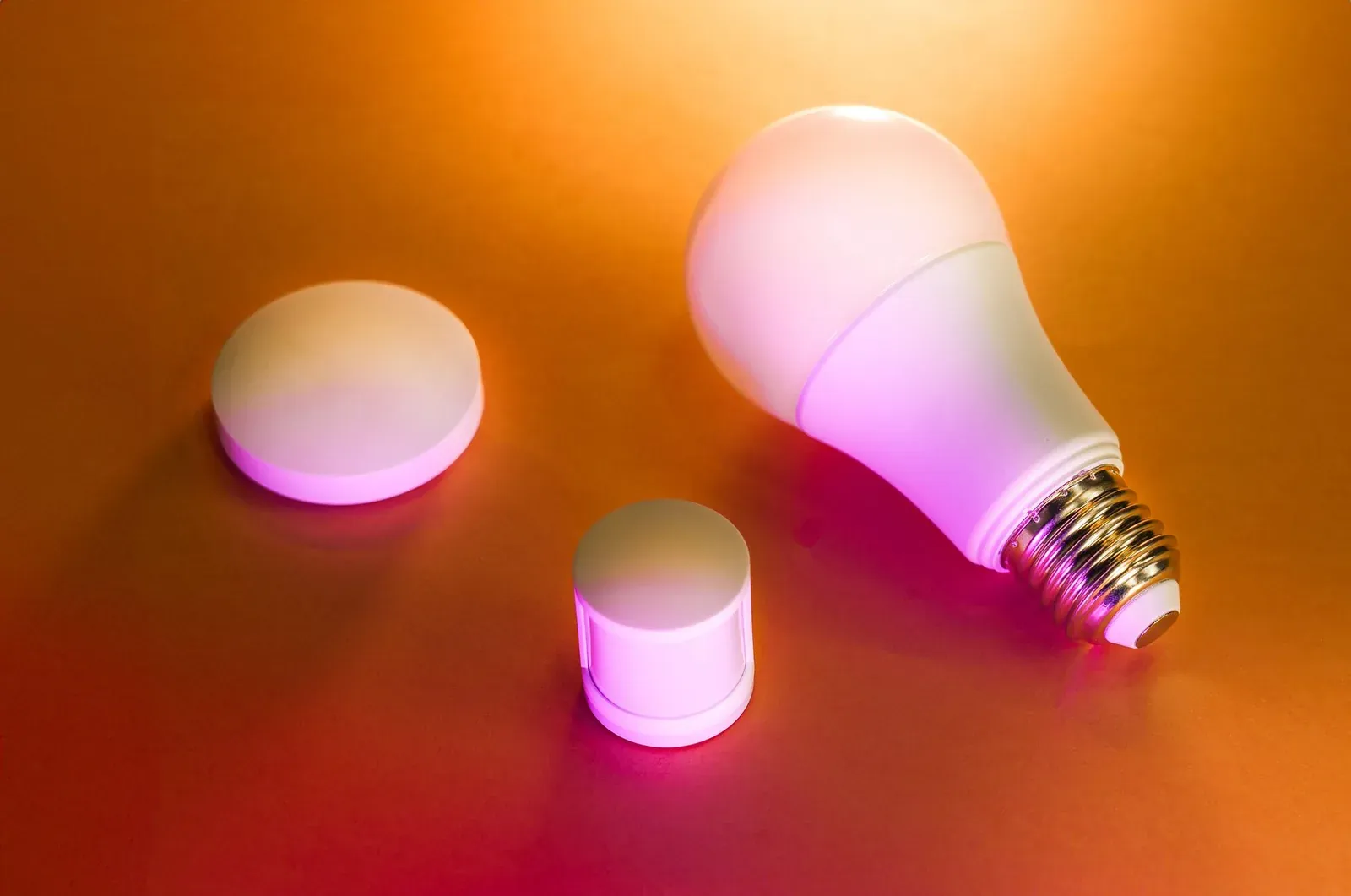
When a smart bulb keeps going offline, the culprit is almost always one of four things: weak 2.4 GHz Wi-Fi signal at the fixture, a router that keeps changing the bulb's IP address or channel, power interruptions from a wall switch, or outdated firmware. Because most Wi-Fi smart bulbs are low-power devices with tiny antennas crammed into a bulb housing, they are far more sensitive to network quirks than a phone or laptop. The good news: once you identify which of those four is happening, the fix is usually straightforward and permanent.
First, confirm what “offline” actually means
“Offline” in your Alexa app, Google Home app, or the bulb's own manufacturer app can mean two very different things: the bulb has lost its Wi-Fi connection, or the cloud service that reports its status has lost track of it. Before changing anything, check whether the bulb still responds to its physical wall switch and whether other Wi-Fi devices in the same room are stable. If everything else on your network is fine and only the bulb drops, the problem is local to that device. If several devices drop together, the issue is your network or hub—see our guide on stabilizing a smart-home hub that keeps disconnecting.
Work through the fixes in order
These are ordered from most common and least disruptive to least common. Stop as soon as the bulb stays connected for a full day.
- 1Keep the wall switch permanently on and power-cycle the bulb once
- 2Move the bulb onto the 2.4 GHz band and check signal strength at the fixture
- 3Reserve a fixed IP for the bulb in your router
- 4Update the bulb’s firmware in its manufacturer app
- 5Re-pair only as a last resort, close to the router
1. Rule out the wall switch
This is the single most common cause of a bulb that appears “offline.” A Wi-Fi smart bulb needs constant power to stay on the network. If anyone flips the wall switch off—or a smart switch or motion sensor cuts power—the bulb goes dark and reports as offline until power returns. Leave the switch on at all times and control the bulb through the app or voice instead. If housemates keep flipping it, consider a switch guard or a smart switch configured to always pass power.
2. Fix the band and the signal
Virtually all Wi-Fi smart bulbs connect only on 2.4 GHz, never 5 GHz. Modern routers that combine both bands under one network name (“band steering”) can confuse a bulb into repeatedly trying to reach a band it can't use, causing drops. The 2.4 GHz band travels farther through walls, but ceiling fixtures and enclosed lamps still attenuate it. Two things help most:
- Give your 2.4 GHz band its own network name, or temporarily disable 5 GHz during pairing. Our walkthrough on setting up a separate SSID for smart-home devices covers this in detail.
- Check signal strength at the fixture. If the bulb is at the edge of coverage, a mesh node or access point nearby will do more than any app setting. See how to improve Wi-Fi for smart-home devices.
3. Give the bulb a permanent IP address
Routers hand out IP addresses on a lease (DHCP). When a lease expires and the router assigns the bulb a new address, some bulbs—and the cloud services tracking them—briefly lose the connection and report offline. A DHCP reservation ties the bulb's hardware (MAC) address to one IP forever, eliminating this whole category of drop. You'll find it in your router's admin page under DHCP or LAN settings.
4. Update firmware
Manufacturers regularly ship firmware that fixes reconnection bugs. Open the bulb's own manufacturer app (not Alexa or Google Home) and look for a firmware or device-info section. Apply any pending update while the bulb is powered and close to the router.
5. Re-pair as a last resort
If the bulb still drops, remove it from the app and re-add it within a few feet of the router to guarantee a clean signal during setup, then return it to its fixture. If it pairs but drops again once relocated, that confirms a signal problem—go back to step 2. Our step-by-step guide to a smart bulb that won't connect covers pairing edge cases.
Wi-Fi bulbs vs. hub-based bulbs
If drops are constant despite everything above, the bulb's connection type matters. Wi-Fi bulbs talk directly to your router and compete with every other device for airtime; Zigbee, Thread, and Z-Wave bulbs use a low-power mesh through a hub and are generally more stable in large or device-dense homes.
| Factor | Wi-Fi bulb | Hub-based (Zigbee/Thread/Z-Wave) |
|---|---|---|
| Needs a hub | No | Yes (or a Matter/Thread border router) |
| Band / network load | Shares 2.4 GHz with everything | Separate low-power mesh |
| Stability in dense homes | Drops more often | More resilient; bulbs repeat signal |
| Common failure point | Router IP/band handling | Hub connectivity |
If you're weighing a switch, our overview of whether you still need a smart-home hub in 2026 is a good starting point.
Frequently asked questions
Why does my smart bulb only go offline at night?
Two usual causes: someone cuts the wall switch when the room isn't in use, or nightly Wi-Fi interference and router-scheduled reboots drop the connection. Check for a scheduled router restart and confirm the switch stays on.
Does a smart bulb going offline mean it's broken?
Rarely. Offline almost always points to power or network conditions rather than a hardware fault. Work through the steps above before assuming the bulb has failed—genuine hardware failure is uncommon and usually shows as a bulb that won't power on at all.
Will a mesh Wi-Fi system fix constant drops?
Often, yes—if the root cause is weak signal at the fixture. A mesh node closer to the bulb can resolve edge-of-coverage drops. It won't help if the real issue is a shifting IP or the wall switch. See whether mesh Wi-Fi is worth it for a smart home.
My bulbs went offline after a power outage—why?
After an outage, your router may boot slower than your bulbs, or hand out new IP addresses, leaving devices stranded. Our guide to smart devices offline after a power outage walks through the recovery order.