2.4GHz vs 5GHz for Smart Home Devices: Why It Matters
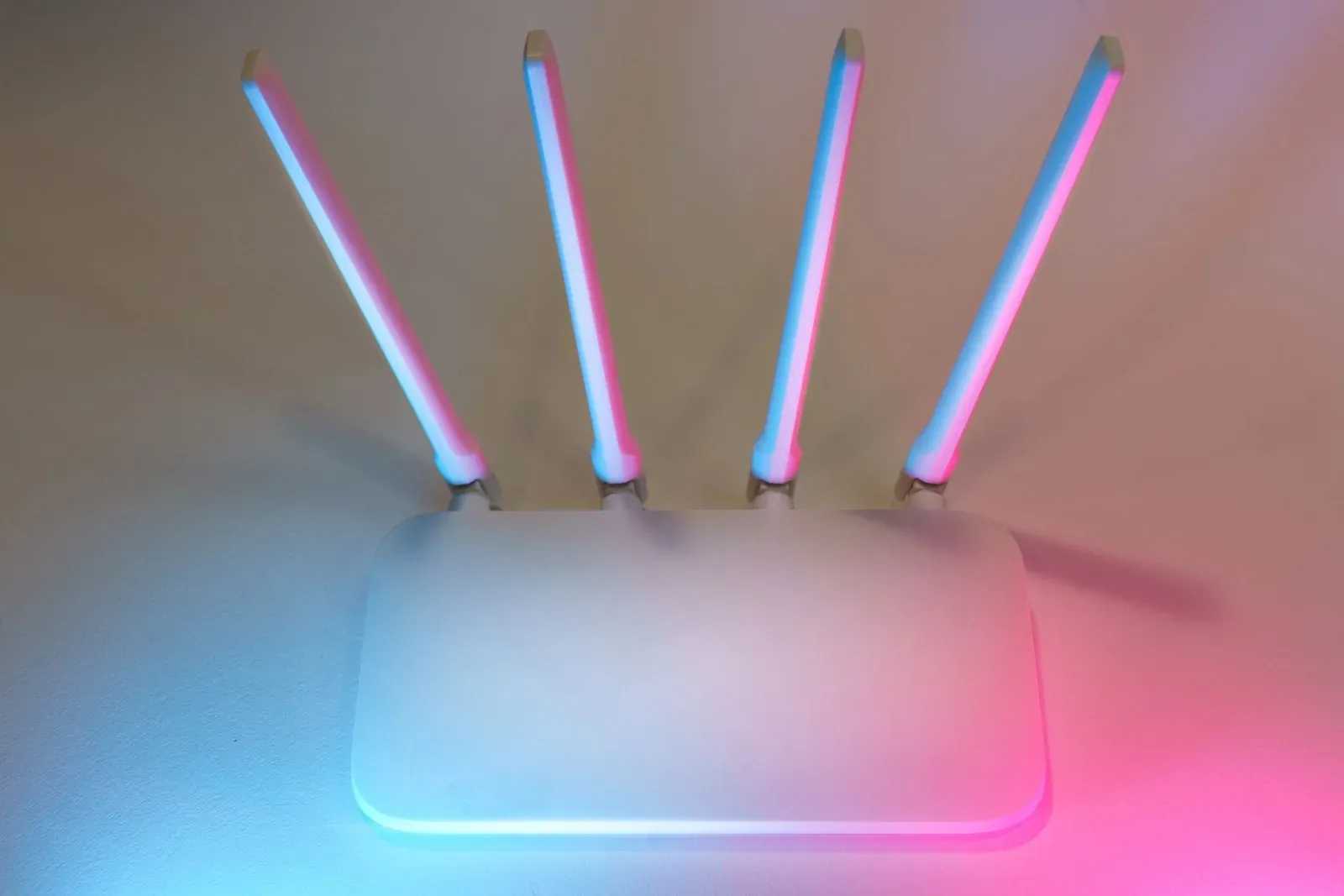
If a smart plug, camera, or bulb refuses to finish setup, the most common culprit isn't a broken device or a weak password — it's the Wi-Fi band. Most inexpensive smart-home gadgets connect only on the 2.4GHz band, not the faster 5GHz band, and modern routers often hide both behind a single network name. When your phone is on 5GHz during setup, the device can't follow along, and the app stalls or times out. The fix is usually to make sure the device is being pointed at a 2.4GHz signal.
Below is what actually separates the two bands, why manufacturers overwhelmingly pick 2.4GHz for connected devices, and how to get past the setup errors that band confusion creates.
What 2.4GHz and 5GHz actually are
Both are frequency bands your Wi-Fi router broadcasts on. The numbers describe the radio frequency, and that frequency dictates a trade-off you can't escape: lower frequencies travel farther and pass through walls and floors more easily, while higher frequencies carry more data but fade faster over distance and through obstacles.
That's the whole story in physics terms. A 2.4GHz signal will reach the smart sensor in your detached garage; a 5GHz signal might not make it past two interior walls. In exchange, 5GHz can move data several times faster and is far less crowded, because it has many more non-overlapping channels.
| Characteristic | 2.4GHz | 5GHz |
|---|---|---|
| Range | Longer; better through walls | Shorter; weakens through obstacles |
| Speed | Lower | Higher |
| Congestion | Crowded (few channels, many devices) | Less crowded (more channels) |
| Typical smart-home use | Plugs, bulbs, sensors, cameras, hubs | Streaming, laptops, phones, gaming |
| Device support | Nearly universal on smart devices | Often absent on budget devices |
Why smart-home devices favor 2.4GHz
It comes down to what these devices actually need. A smart plug reporting its on/off state, a contact sensor, or a bulb taking a color command moves tiny amounts of data. They don't benefit from 5GHz speed. What they do need is a reliable connection from wherever they happen to live — often a far bedroom, a basement, or outdoors — and 2.4GHz's superior range delivers that.
There are practical manufacturing reasons too:
- Cost and size. A 2.4GHz-only radio chip is cheaper and smaller, which matters when a device sells for $15 and has to fit inside a wall plug.
- Power draw. 2.4GHz radios are generally easier on battery-powered devices, helping sensors last months between changes.
- Compatibility. Designing for the band that every router supports avoids support headaches.
This is also why low-power mesh protocols like Zigbee, Z-Wave, and Thread exist at all — they sidestep Wi-Fi for the same range-and-power reasons. Thread in particular runs on 2.4GHz and is built for exactly this kind of small, frequent messaging. If you're weighing connection types, our explainer on Matter vs Zigbee vs Z-Wave covers how those compare, and what a Thread border router does explains the piece that bridges Thread devices to your network.
The real problem: combined network names and band steering
Here's where most people get stuck. To keep things simple, many routers — especially carrier-supplied gateways and mesh systems — broadcast 2.4GHz and 5GHz under a single network name (SSID) and decide which band each device uses. This feature is often called band steering.
For phones and laptops, that's convenient. For smart-home setup, it backfires. The typical setup flow asks your phone to hand Wi-Fi credentials to the new device, and many apps will only do so if your phone is currently on a 2.4GHz network. If band steering has parked your phone on 5GHz, the app may warn you, fail silently, or hang at the "connecting" step. The device itself is fine — it simply never receives a network it can use.
How to get past 2.4GHz setup failures
The goal is to make sure both your phone and the new device are working with a 2.4GHz signal during the pairing step. You usually only need this during setup — once a device is connected, it stays put.
- 1Put your phone on a 2.4GHz network before opening the device’s app
- 2If your router uses one combined name, temporarily create or enable a separate 2.4GHz SSID in the router settings
- 3Stay near the router during pairing, then move the device to its final spot
A few more tactics that resolve the majority of cases:
- Split the bands temporarily. In your router's admin app or web page, look for an option to give 2.4GHz its own network name (e.g., "MyWiFi-2G"). Connect your phone to that during setup. You can re-enable the combined name afterward.
- Disable band steering briefly. Some routers let you turn it off, forcing your phone onto a band you control.
- Toggle airplane mode or forget the 5GHz network on your phone so it has no choice but to grab 2.4GHz.
- Check the password and characters. Some 2.4GHz-only devices choke on very long passwords or certain special characters — a separate, simpler 2.4GHz SSID sidesteps that too.
If you're still stuck after sorting out the band, our deeper guide on smart devices that won't connect to Wi-Fi during setup walks through ten further fixes.
Does Matter change any of this?
Partly. Matter is a connectivity standard that runs over Wi-Fi, Ethernet, and Thread. Matter-over-Wi-Fi devices still face the same 2.4GHz-versus-5GHz reality — some support both bands, many budget ones still default to 2.4GHz. Matter-over-Thread devices skip Wi-Fi entirely and ride the Thread mesh instead, which is why they need a border router rather than a direct Wi-Fi join. If you're adding Matter gear, see how to add a Matter device to Alexa, Google, or Apple Home and our Matter vs Thread explainer.
- Best range and wall penetration
- Standard for plugs, bulbs, sensors, many cameras
- Much faster data throughput
- Better for phones, laptops, streaming — rarely needed by simple devices
Frequently asked questions
Why does my smart plug only work on 2.4GHz?
Most likely it only has a 2.4GHz radio. Manufacturers choose 2.4GHz for plugs and similar devices because it's cheaper, lower-power, and reaches farther — qualities that matter more than speed for a device that sends almost no data. It's not a defect; it's a design choice you'll see across the category.
Is 5GHz better for a smart home?
Not usually. 5GHz is faster but covers less distance and struggles through walls, which is the opposite of what most sensors and plugs need. 5GHz shines for your phone, laptop, and streaming devices. Many homes run best with both bands enabled and each device on whichever suits it.
How do I know which band my phone is using?
If your router uses separate network names, your phone shows which one it's joined in its Wi-Fi settings. If both bands share one name, you generally can't tell from the phone, which is exactly why temporarily creating a 2.4GHz-only network for setup is the most reliable approach.
Will my device fall off Wi-Fi when I move it after setup?
It can, if the new location is out of 2.4GHz range or you switched off the network it joined. Pair near the router, then relocate gradually. If a device keeps dropping, it may be at the edge of coverage — and if your assistant suddenly stops controlling devices, our guide on Alexa not responding to smart-home devices covers the platform side of that.