How to Set Up an Amazon Echo for the First Time
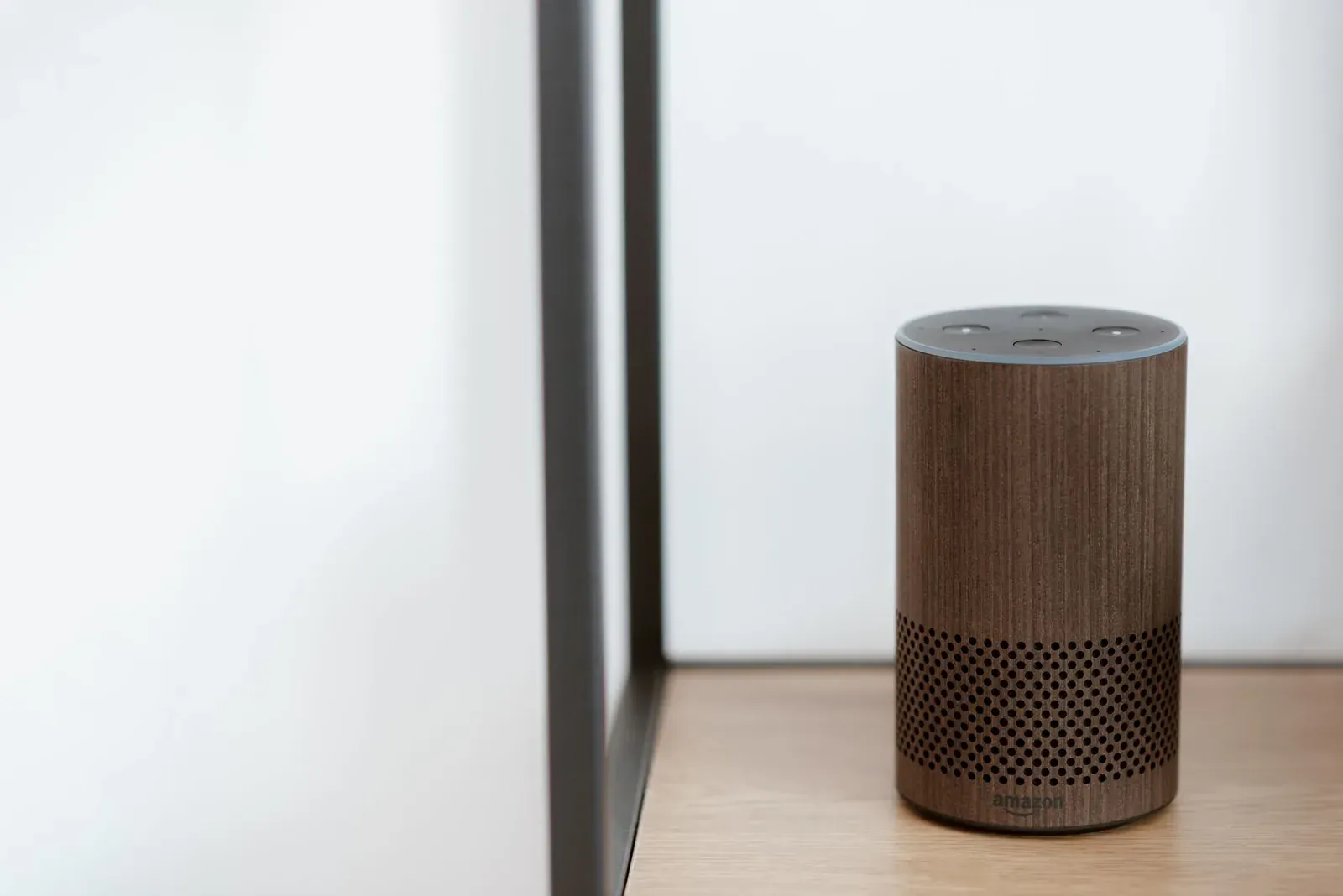
Setting up an Amazon Echo for the first time comes down to four things: download the Alexa app, sign in with (or create) an Amazon account, plug the Echo in and let the app find it, then connect it to your 2.4GHz/5GHz Wi-Fi network. The whole process usually takes well under fifteen minutes, and almost every snag people hit is a Wi-Fi or account issue rather than a fault with the speaker itself. Below is the full sequence, why each step matters, and how to recover when something stalls.
- 1Install the Alexa app and sign in
- 2Power on the Echo and wait for the orange ring
- 3Connect the Echo to your Wi-Fi in the app
- 4Set the device location and preferences
What you need before you start
A successful setup depends less on the speaker and more on the environment around it. Get these ready first so you are not troubleshooting mid-process:
- A smartphone or tablet running a current version of iOS or Android, with the free Alexa app installed from the App Store or Google Play.
- An Amazon account. If you bought the Echo from Amazon while signed in, it may arrive pre-registered to your account, which skips a step.
- Your Wi-Fi network name and password. Echo devices connect over both 2.4GHz and 5GHz Wi-Fi. The 2.4GHz band reaches further and is generally the more forgiving choice for a smart speaker tucked in a corner of the house. If you are unsure which band to use, our guide on 2.4GHz vs 5GHz for smart home devices explains the trade-offs.
- The power adapter that came in the box. Echo speakers are designed for their bundled adapters; underpowered third-party USB chargers can cause boot loops or random reboots.
Step 1: Install the Alexa app and sign in
The Alexa app is the control center for setup, settings, routines, and adding smart-home devices later. Open your phone's app store, search for Amazon Alexa, and install it. When you launch it, sign in with your existing Amazon credentials or tap the option to create a new account.
Use the same account you intend to use for shopping, music, and other Amazon services. The Echo ties into that account for voice purchasing, your music library, and calendar access, so signing in with a one-off address now tends to cause confusion later.
Step 2: Power on the Echo and start adding the device
Place the Echo on a flat surface, away from walls and large metal objects that can interfere with Wi-Fi and the microphones, then plug it into the wall using the included adapter. After a few seconds it will light up. Wait for the light ring to settle on a spinning orange color — that signals the Echo is in setup mode and broadcasting its own temporary Wi-Fi network so your phone can find it.
If the ring does not turn orange on its own (common with a previously used or returned unit), press and hold the Action button — the one with a single dot — for several seconds until the ring turns orange.
In the Alexa app, look for the option to add a device (often a + icon or a "Devices" area), choose Amazon Echo, and select your specific model. The app then walks you through connecting.
Step 3: Connect the Echo to your Wi-Fi
This is where most setups either sail through or stall. The app temporarily connects your phone to the Echo's own network, then hands over your home Wi-Fi credentials. On modern phones this is largely automatic; on others you may be asked to go to your phone's Wi-Fi settings and manually pick the network named something like Amazon-XXX before returning to the app.
- When prompted, choose your home Wi-Fi network from the list the app shows.
- Enter your Wi-Fi password carefully — this is the single most common point of failure. If your phone is connected to that same network, the app may offer to save and reuse the password automatically.
- Wait while the Echo connects. The ring spins, then the app confirms success and the speaker greets you.
If the Echo connects but later keeps dropping off, the cause is usually the network rather than the speaker. Our walkthrough on smart-home devices that keep going offline and our smart-home Wi-Fi best practices cover the router-side fixes that keep speakers stable.
Step 4: Finish the personalization
Once connected, the app offers a short series of optional setup screens. None are strictly required, but two are worth doing now:
- Set the device location. Entering your address or ZIP code lets Alexa give accurate weather, traffic, and local times, and it supports some smart-home features.
- Pick a wake word. The default is "Alexa," but you can switch to "Amazon," "Echo," "Computer," or "Ziggy" if that name causes confusion in your household.
You can skip music-service linking, voice profiles, and calendar setup for now and return to them anytime in the app's settings. Once you are comfortable, adding smart-home devices and fixing the occasional hiccup — like when Alexa stops responding to smart-home devices — is the natural next step.
When setup gets stuck: quick fixes
If the app cannot find the Echo or the Wi-Fi connection fails, work through these in order rather than starting over each time:
| Symptom | Likely cause | What to try |
|---|---|---|
| App never finds the Echo | Phone not on the Echo's temporary network, or Bluetooth off | Enable Bluetooth and location for the Alexa app; manually join the "Amazon-XXX" Wi-Fi in phone settings |
| Ring won't turn orange | Echo not in setup mode | Hold the Action button until the ring turns orange |
| "Unable to connect to Wi-Fi" | Wrong password or unsupported network | Re-enter the password; switch from a 5GHz-only or guest network to your main 2.4GHz network |
| Connects, then drops | Weak signal or router congestion | Move the Echo closer to the router; see our offline-device fix guide |
If problems persist specifically during the join step, our dedicated guide on smart devices that won't connect to Wi-Fi during setup goes deeper into router settings, band steering, and DNS issues that can block a first connection.
Frequently asked questions
Do I need a smart-home hub to use an Amazon Echo?
No. An Echo connects directly to your Wi-Fi and needs no separate hub for its core voice features. Some newer Echo models include built-in Zigbee, Thread, or Matter support that lets them act as a hub for certain devices, but that is a bonus — the basic setup above is all you need to get started. If you are weighing whether a hub matters at all, see our overview on whether you still need a smart-home hub.
Can I set up an Echo without the Alexa app?
Not practically. The Alexa app is how the Echo receives your Wi-Fi credentials and account details. There is a web-based version of Alexa for managing settings after setup, but for the initial Wi-Fi connection the mobile app is the supported path.
Why does my Echo keep saying it can't connect to the internet?
This almost always points to the network, not the speaker. Double-check the Wi-Fi password, confirm other devices on the same network can reach the internet, and avoid guest or captive-portal networks. If the Echo connects but repeatedly drops, congestion or weak signal is usually to blame.
Can I move my Echo to a new house or new Wi-Fi network?
Yes. Open the Alexa app, select the device, and update its Wi-Fi settings to add the new network. You do not need to factory-reset it unless you are giving it to someone else, in which case deregister it from your account first.