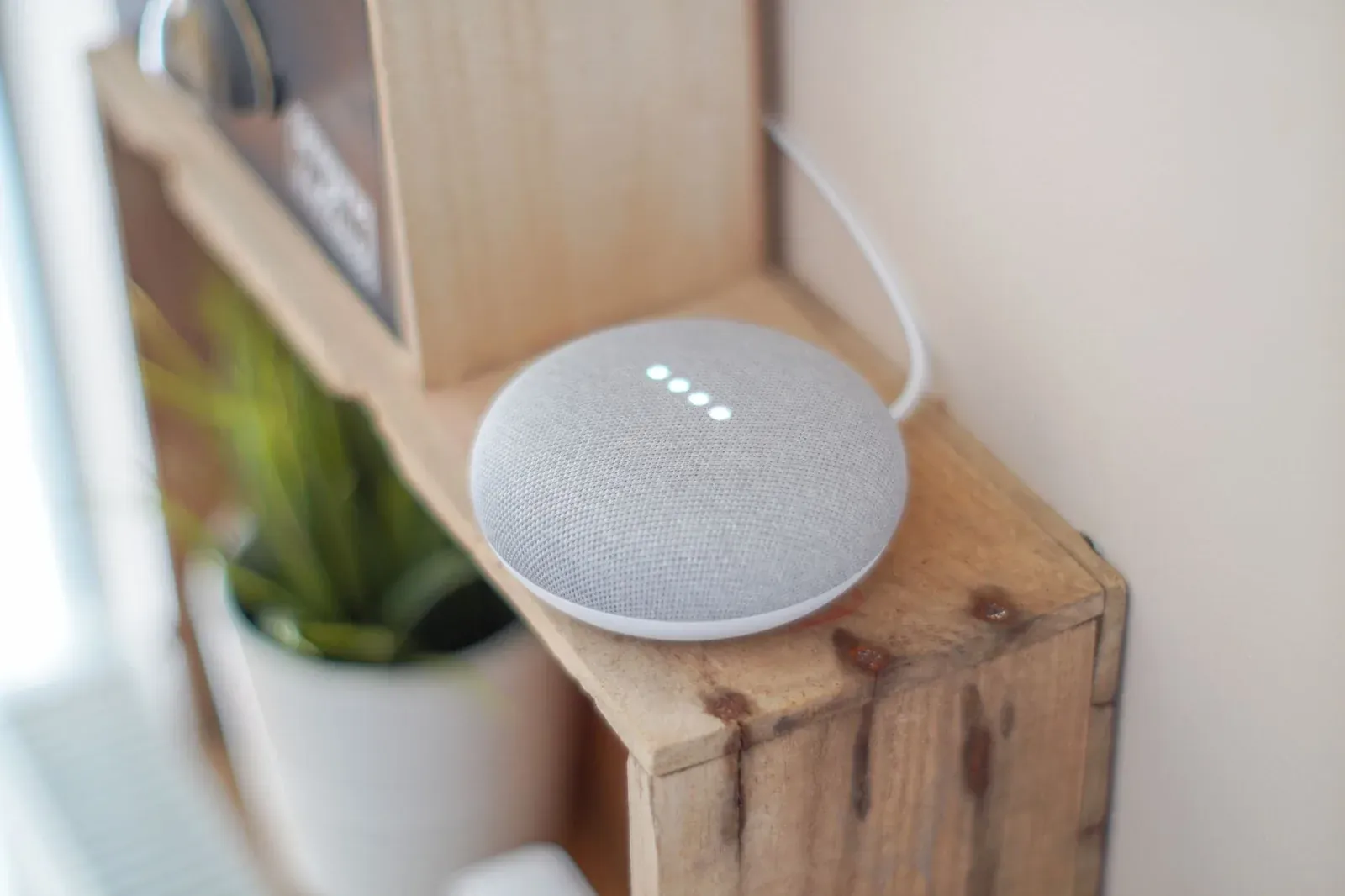
How to Factory Reset a Google Nest Speaker or Display
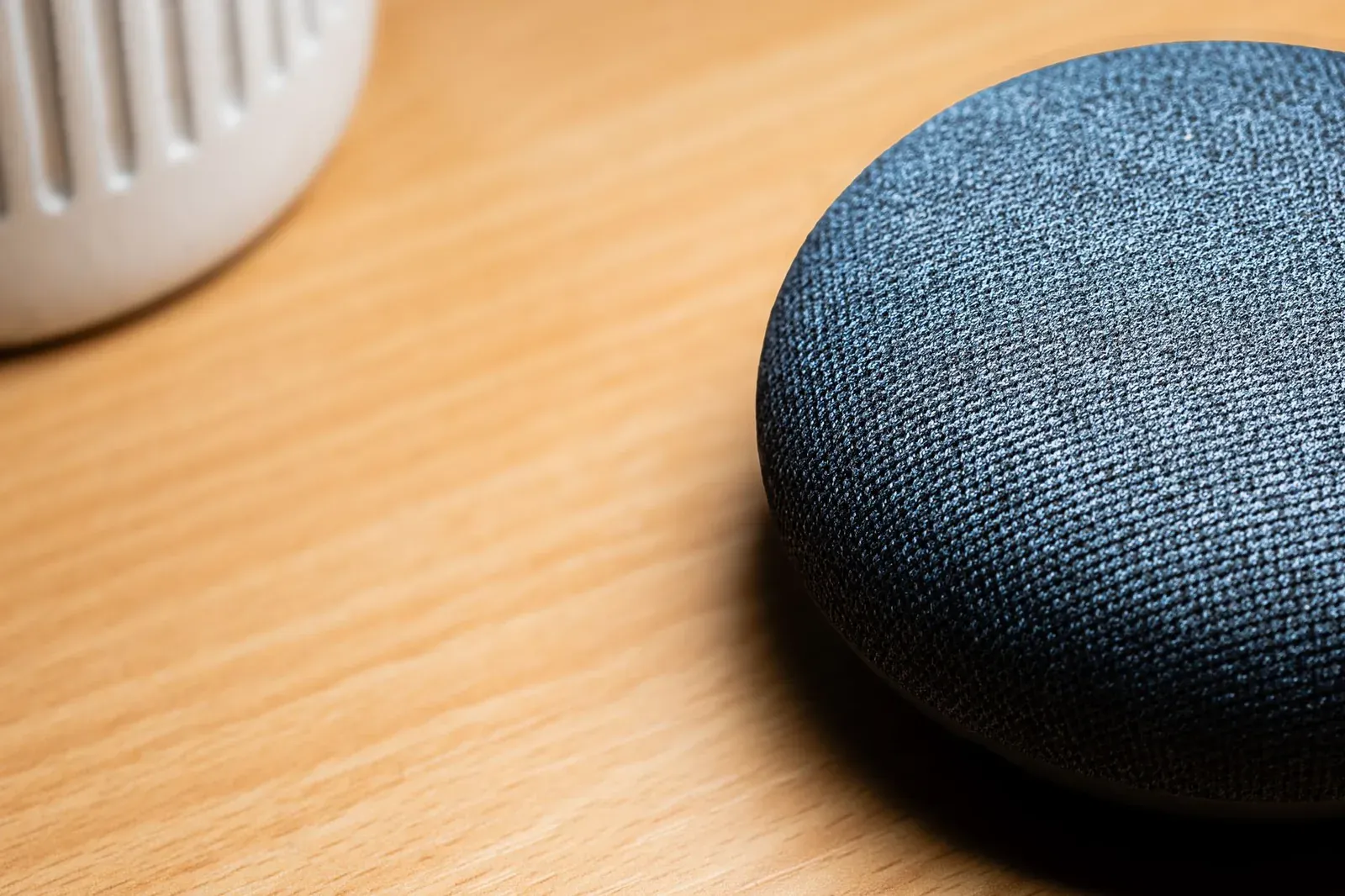
To factory reset most Google Nest speakers, press and hold the microphone-off (mute) button for about 10 to 15 seconds until the Assistant confirms it is resetting. On a Nest display, you reset from the on-screen settings menu, using the physical buttons on the back, or by holding both volume buttons. A factory reset wipes the device's link to your Google account, its Wi-Fi credentials, and any local settings, so it's the right move before selling, gifting, or troubleshooting a device that won't respond to normal fixes — but it's overkill for most everyday glitches.
Below we cover the exact method for each model, the difference between a reboot and a reset, and the cleanup steps most guides skip — like removing the device from the Google Home app afterward so it doesn't linger as a ghost entry.
Reboot first: most problems don't need a reset
A factory reset is destructive. It removes the speaker or display from your home, forgets your Wi-Fi, clears linked services, and forces you to run first-time setup again. For a device that's simply unresponsive, dropping off Wi-Fi, or not hearing "Hey Google," a plain restart usually fixes it and keeps all your settings intact.
- Power-cycle: Unplug the device at the wall, wait 30 seconds, and plug it back in. This clears the most common temporary faults.
- Restart from the app: In the Google Home app, open the device's settings and look for a restart option in the overflow menu.
- Restart from a Nest display: Swipe to open the display's own settings and choose the restart option there.
If the device still misbehaves after a reboot — or you're preparing to hand it to someone else — then a factory reset is warranted. If the underlying issue is a network change, a full reset is unnecessary; see our guide on changing the Wi-Fi network on Google Home / Nest instead.
Factory reset by model
Google has used slightly different button layouts across generations, so the reset gesture depends on which device you own. The table below covers the current and most common models. If you're unsure which speaker you have, our Nest Mini vs Nest Audio vs Nest Hub comparison shows how to tell them apart.
| Device | Reset method | What to look for |
|---|---|---|
| Nest Mini (2nd gen) / Google Home Mini | Toggle the mic switch to off, then press and hold the center of the device (or the mute area) for ~10–15 sec | Assistant announces it's about to reset; keep holding until it confirms |
| Nest Audio | Slide the mic switch to off, then press and hold the top-center of the unit for ~10–15 sec | A tone plays, then the Assistant confirms the reset |
| Google Home (original) | Press and hold the mic-mute button on the back for ~15 sec | Assistant confirms; the lights spin during the process |
| Nest Hub / Nest Hub Max (display) | Use on-screen settings, or hold both volume buttons on the back for ~10 sec | Screen shows a reset countdown or menu prompt |
Speakers (Nest Mini, Nest Audio, Google Home)
- Make sure the device is powered on and the microphone switch is set to off — on most speakers, the reset gesture only works from the muted state.
- Press and hold the mute/center button. After a few seconds the Assistant will warn you that it's about to reset the device.
- Keep holding for the full 10–15 seconds. Releasing early cancels the process.
- Wait for the confirmation tone and the lights to settle. The speaker will reboot into out-of-box mode, ready for setup.
- 1Set the mic switch to off
- 2Press and hold the mute button ~10–15 sec
- 3Keep holding past the warning until it confirms
- 4Wait for the reboot into setup mode
Displays (Nest Hub and Nest Hub Max)
A Nest display gives you two paths. The cleanest is the on-screen menu: swipe to open the display's settings, find the device/system section, and choose the factory reset option. If the screen is frozen or unresponsive, use the hardware method — press and hold both volume buttons (up and down together) on the back of the unit for about 10 seconds until the reset screen appears, then follow the prompt.
Finish the job in the Google Home app
Resetting the hardware is only half of a clean reset. The device may still appear in your Google Home app as an offline or unavailable entry, and it can remain tied to routines, speaker groups, or Voice Match profiles. Tidy up afterward:
- Remove the device from the home in the Google Home app if it lingers after the reset. Open its settings and look for the remove/delete option.
- Clean up speaker groups so you're not left with a group pointing at a device that no longer exists.
- Check your routines and automations. Any routines or automations that named the reset device — for playback, broadcasts, or alarms — will need editing.
- Re-run Voice Match if needed. Personal results depend on your Voice Match setup, which the device forgets on reset.
Reset vs. remove: which do you actually need?
People often reach for a factory reset when a lighter action would do. Here's how the two compare.
- Erases Wi-Fi, account link, and all local settings on the device
- Needed before selling or gifting the device
- Unlinks the device from your home but leaves it configured
- Useful when moving a device to a different Google account or home
If you're giving the device away, do both: factory reset the hardware so your data is gone, and remove it from your app so it's no longer attached to your account. If you're only reorganizing your own homes, removing and re-adding it is often enough — see how to add a device to Google Home.
Setting the device up again
After a reset, the speaker or display broadcasts itself for setup just like a brand-new unit. Open the Google Home app, add a new device, and follow the prompts to connect it to Wi-Fi and your account. Our first-time setup guide walks through the whole flow, including linking media services and choosing a room.
Frequently asked questions
Will a factory reset delete my Google account data?
No. A reset only clears what's stored on the device — its Wi-Fi credentials, account link, and local settings. Your Google account, your data, and settings tied to your account in the cloud remain untouched. It's the device that's wiped, not your account.
My Nest speaker won't reset — what am I doing wrong?
The most common cause is releasing the button too early or not muting the microphone first. On speakers, set the mic switch to off, then hold the mute button firmly for the full 10–15 seconds — past the spoken warning. If nothing happens at all, power-cycle the device and try again; a frozen unit sometimes won't register the hold.
Do I need the Google Home app to factory reset?
No. The hardware reset (holding the mute or volume buttons) works entirely on the device, which is helpful when the device is off your network or the app can't see it. You'll want the app afterward, though, to remove the leftover entry and to run setup again.
Is there a single reset button on every Nest device?
Not exactly — the gesture differs by model. Speakers use the mic/mute button, displays use volume buttons or the on-screen menu. For a broader walkthrough covering thermostats and other Nest hardware, see our companion guide on factory resetting a Google Home or Nest device.