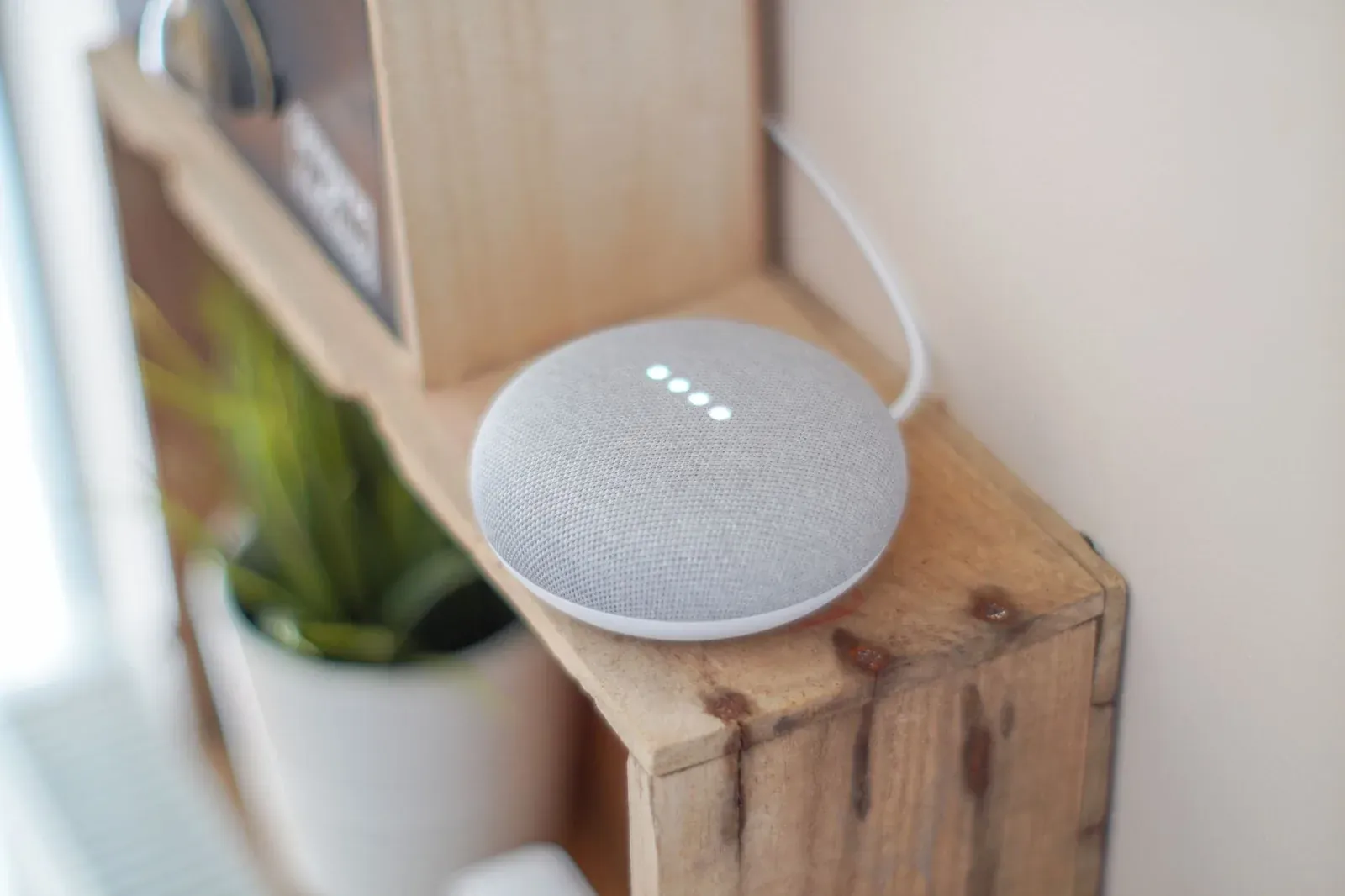
How to Set Up Google Home & Nest for the First Time
Setting up a Google Home or Nest device for the first time comes down to one app and a short checklist: install the Google Home app, sign in with the Google account you actually want to use long-term, plug in your speaker or display, and let the app walk you through Wi-Fi and room assignment. The whole process usually takes under ten minutes once you have the prerequisites ready. The mistakes that cause trouble later — using the wrong account, skipping the room setup, or putting the device on a network it can't reach — are all avoidable if you slow down at a few specific steps.
This guide covers the first-time setup that's common to Google Nest speakers, smart displays, and the broader Google Home ecosystem, plus the decisions that are easy to get wrong and hard to undo without starting over.
Before you start: what you need
A few prerequisites prevent the most common stalls. Google's setup flow assumes all of these are in place, and it fails quietly if one is missing.
- The Google Home app. This is the single app for setup, control, and automation. The older standalone Google Assistant settings are increasingly folded into it.
- One Google account, chosen deliberately. Whatever account you use becomes the "home" owner. Personal results, calendars, and voice features tie to it, so pick the account you'll keep using — not a throwaway.
- Your Wi-Fi password and a phone connected to the network you want the device on. Many Nest devices connect over 2.4 GHz during setup; if your router broadcasts 2.4 and 5 GHz under the same name, that's usually fine, but a 5 GHz-only network can cause failures.
- Bluetooth and Location enabled on your phone. The app uses Bluetooth to discover the new device and Location to detect nearby Wi-Fi networks.
Step-by-step: first-time setup
- 1Install the Google Home app and sign in
- 2Power on your Nest device and wait for it to enter setup mode
- 3Tap to add the device and let the app discover it
- 4Confirm the pairing code, then join Wi-Fi and assign a room
- 5Set voice options and finish, then test with a command
- Install the app and sign in. Download the Google Home app from the App Store or Google Play and sign in with your chosen Google account. If you manage devices for a household, you'll create or join a "home" here — a container that groups devices, rooms, and members.
- Power on the device. Plug in your speaker or display using the adapter from the box. Third-party USB chargers sometimes don't deliver enough power, which causes restarts. Wait for the startup chime or on-screen welcome; this indicates the device is in setup mode.
- Add the device. In the Google Home app, look for the option to add or set up a device, then choose the new-device path (not the "works with Google Home" path, which is for linking existing accounts). The app scans over Bluetooth and should list your Nest device by name.
- Confirm the code. The app plays a sound or shows a code that must match what your device displays or chimes. This handshake confirms you're configuring your device and not a neighbor's — a small but real security step.
- Join Wi-Fi. Select your network and enter the password. If your device is on the same network as your phone, the app can sometimes pass the credentials automatically. If Wi-Fi setup fails here, the cause is almost always the band, a typo'd password, or weak signal at the device's location.
- Assign a room. Choose or create a room (Living Room, Kitchen, Bedroom). This is not cosmetic: room assignment is how voice commands like "turn off the lights" know which lights you mean. Skipping it leads to vague control later.
- Set voice and finish. You'll be offered Voice Match (so the assistant recognizes you), media service links, and similar options. You can skip these and add them later. Finish setup and try a command like "Hey Google, what's the weather?" to confirm everything works.
Where setup goes wrong (and how to fix it)
If the app can't find your device or Wi-Fi won't connect, work through these in order rather than factory-resetting immediately.
- Device not discovered: Confirm Bluetooth and Location are on, move your phone within a few feet of the device, and make sure no one else is mid-setup on the same device.
- Wi-Fi fails repeatedly: Verify you're joining a 2.4 GHz network, re-enter the password carefully, and move the device closer to the router for setup. Guest networks and captive-portal networks (the kind that need a browser login) generally won't work.
- Setup hangs at the end: Force-close and reopen the app, confirm your phone has a working internet connection, and retry. A device stuck in a half-configured state can be reset by holding its reset/mic button per Google's instructions.
For deeper connection problems, our walkthrough on why smart devices won't connect to Wi-Fi during setup covers router-side fixes like band steering and channel width.
Adding more devices and smart-home accessories
Once your first device is live, additional Nest products follow the same flow and join the same home. For third-party smart-home gear, Google increasingly supports Matter, the cross-platform standard, which simplifies onboarding and often lets the same device work in more than one ecosystem.
| What you're adding | How it joins Google Home | Good to know |
|---|---|---|
| Another Nest speaker/display | Add-device flow in the app | Assign a room; group for multi-room audio |
| Matter accessory (bulb, plug, sensor) | Scan the Matter QR/setup code in the app | A Thread accessory needs a border router on your network |
| Existing brand account (e.g., a partner app) | Link via "works with Google Home" | You'll sign into that brand's account once |
If you're weighing how these standards fit together, see Matter vs Thread explained and our guide to adding a Matter device to Alexa, Google, or Apple Home. If a Matter-over-Thread accessory won't onboard, you likely need a border router — our explainer on what a Thread border router is and whether you need one clarifies that.
Frequently asked questions
Do I need a separate hub to set up Google Nest?
No. A Nest speaker or display sets up directly through the Google Home app over Wi-Fi — there's no separate hub box to buy. For low-power accessories that use Thread, you'll want a Thread border router on your network, and many Nest displays and speakers can serve that role themselves.
Can I use more than one Google account on the same device?
Yes. One account owns the home and handles setup, but additional household members can be invited and can enroll their own Voice Match so the assistant gives each person personal results. The owner account is the one that should remain stable over time.
Why won't my Nest device connect to Wi-Fi?
The usual culprits are a 5 GHz-only network, a mistyped password, weak signal where the device sits, or a guest/captive-portal network. Move the device near the router, confirm you're on a 2.4 GHz network, and retry. Router features like aggressive band steering can also interfere during the initial handshake.
Should I choose Google Home or Alexa for my smart home?
Both are mature platforms, and the better choice usually depends on the devices and phones you already own. Our comparison of Alexa vs Google Assistant for your smart home breaks down the practical differences in voice control, device support, and routines.