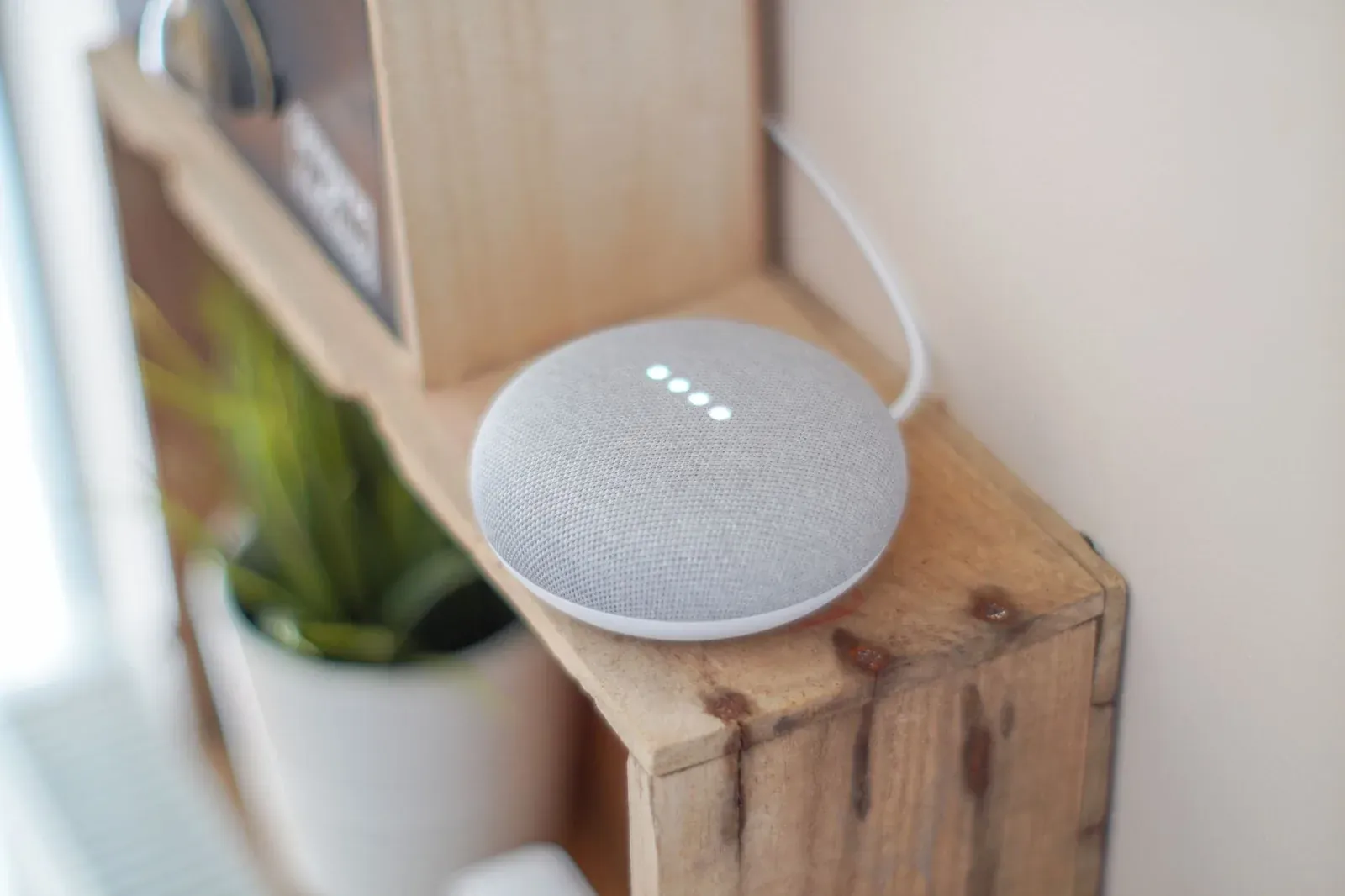
How to Change the Wi-Fi Network on Google Home / Nest
To change the Wi-Fi network on a Google Home or Nest device, open the Google Home app, tap the device you want to move, open its settings, and look for the Wi-Fi (or "Device information") option to forget the current network and reconnect to the new one. The device drops its old credentials, restarts its setup radio, and walks you through joining the new network the same way it did on day one. The whole process usually takes two to five minutes per device, and you'll need to repeat it for each speaker, display, or Nest product on the old network.
This sounds simple, and usually it is — but the wording moves around between app versions, and a few specific situations (a new router with the same name, a guest network, or a Nest camera mid-stream) trip people up. Below is the reliable path, why each step matters, and what to do when the device refuses to switch.
Before you start: what changing networks actually does
Your Google Home or Nest device stores one set of Wi-Fi credentials at a time. When you "change" the network, you're really telling the device to discard what it knows and accept new credentials. That's why you can't just type a new password into a settings box — the device has to briefly become discoverable again so your phone can hand it the new network details over a temporary local connection (Bluetooth or a short-lived setup Wi-Fi).
A few things to line up first so the switch goes cleanly:
- Your phone should already be on the new network. The Home app copies the network your phone is using as the target, so connect your phone to the new Wi-Fi before you begin.
- Know whether your bands are split. If your router broadcasts 2.4 GHz and 5 GHz under separate names, point the device at the 2.4 GHz one — older Nest and Home speakers connect more reliably there. (More on why in our guide to 2.4 GHz vs 5 GHz for smart-home devices.)
- Have the new Wi-Fi password handy. Even if your phone knows it, the device may prompt you.
How to change the Wi-Fi network, step by step
The exact labels shift between app updates, so we describe what to look for rather than naming a screen that may have moved. As of this writing, the flow in the Google Home app works like this:
- 1Connect your phone to the new Wi-Fi network
- 2Open the Google Home app and tap the device you want to move
- 3Open the device’s settings (gear icon), then find Wi-Fi or Device information
- 4Choose Forget this network, then confirm
- 5Reconnect the device by following the setup prompts to join the new network
- Connect your phone to the new network. This is the single most-skipped step. The app treats your phone's current connection as the network to join, so get this right before anything else.
- Open the Google Home app and select the device. Tap the speaker, display, or Nest product you're moving. Each device is handled individually.
- Open the device's settings. Look for the gear/settings icon, then a Wi-Fi entry (sometimes nested under "Device information"). It will show the network the device is currently on.
- Forget the current network. Choosing "Forget this network" wipes the stored credentials. The device drops off Wi-Fi at this point — that's expected, not a failure.
- Reconnect to the new network. The app sends you back to add the device again. It rediscovers the device over Bluetooth or its setup signal, then prompts you to pick the new Wi-Fi and enter the password. Confirm and let it finish.
Once reconnected, give the device a minute to sync. Your routines, linked accounts, and voice settings stay intact — they live in your Google account, not on the device, so a network change doesn't reset them. If you've built automations, they'll keep working; see creating routines and automations in Google Home if you want to confirm they still trigger.
Special cases that change the steps
Not every network change is a simple swap. Here's how the common scenarios differ:
| Scenario | What's different | What to do |
|---|---|---|
| New router, same network name & password | Device thinks nothing changed but can't reach the old router | Often reconnects on its own after a reboot; if not, forget and rejoin |
| New router, new name/password | Old credentials are invalid | Forget the network, then reconnect as above |
| Moving to a guest or IoT network | Guest networks may block device-to-device traffic | Use a network that allows local discovery, or your phone won't find the device |
| Nest camera or doorbell | Streaming uses more bandwidth and a live session | Switch when not actively streaming; expect a short offline gap |
If you're rebuilding your home network from scratch, it's worth thinking about a stable layout for smart devices before you migrate everything. Our notes on smart-home Wi-Fi channels and bands cover why a consistent 2.4 GHz network keeps speakers and Nest gear connected.
When the device won't switch networks
If the reconnect fails or the device never reappears in setup, work through these in order — they map to the most common documented failure points:
- Confirm your phone is on the new 2.4 GHz network, not the old one and not a 5 GHz-only band the device can't join.
- Enable Bluetooth on your phone. The Home app uses it to discover devices during setup. With it off, the app often can't find the device at all.
- Power-cycle the device. Unplug it for 10 seconds, plug it back in, and wait for it to fully boot before retrying.
- Move your phone close to the device during setup — the initial handshake is short-range.
- Check that the new network isn't isolating clients. Guest networks and some "AP isolation" settings block the phone-to-device link entirely.
If the device connects but then keeps dropping, that's a different problem from switching networks — usually signal, band, or router-stability related. Our guides on Google Home saying "device is offline" and a device that keeps going offline walk through those fixes in depth.
Frequently asked questions
Do I lose my routines or settings when I change Wi-Fi?
No. Your routines, linked services, voice match, and preferences are tied to your Google account, not stored on the device. Changing networks only swaps the device's connection — everything else carries over once it's back online.
Why can't I just type the new password into the app?
Because the device only holds one set of credentials and isn't reachable over the new network until it has them. The app has to briefly talk to the device over Bluetooth or its setup signal to hand over the new details — which is why "forget and reconnect" is the supported path rather than an in-place edit.
I got a new router with the same network name. Do I still need to do this?
Often not. If the name (SSID) and password are identical, the device usually reconnects on its own after you reboot it, because it sees what looks like the same network. If it stays offline after a few minutes, forget the network and reconnect to be sure.
Do I have to repeat this for every speaker and display?
Yes. There's no "move all devices" button — each Home or Nest device stores its own credentials and must be switched individually. If you're moving a whole house of devices, our first-time setup guide is a useful refresher on the per-device flow.