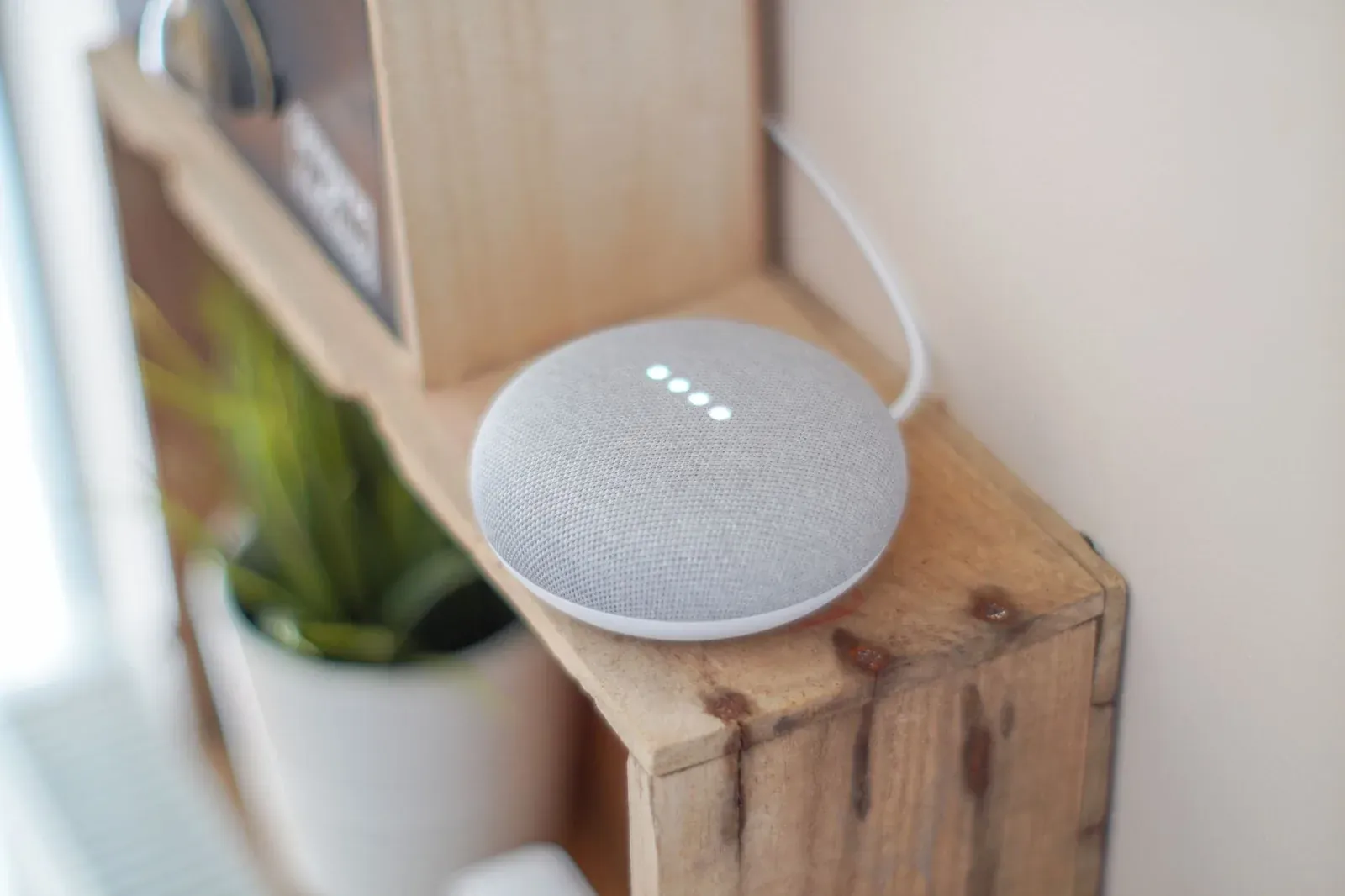
Useful Google Assistant Commands: The List Worth Knowing
The Google Assistant commands worth memorizing fall into a handful of categories: smart-home device control, broadcasts and communication, timers and reminders, media playback, information lookups, and routines that chain several actions into one phrase. You don't need to learn hundreds of exact phrases—Assistant understands natural language—but knowing the reliable patterns (and the device names you assigned during setup) is what makes voice control feel fast instead of frustrating. Below is an organized, practical list, with notes on why certain phrasings work better than others.
How Google Assistant interprets commands
Every command starts with a hotword—"Hey Google" or "OK Google"—followed by your request. Assistant then matches what you said against three things: built-in actions (timers, weather, math), your linked accounts and services (calendar, music, smart-home), and the names of devices and rooms you created in the Google Home app. That last point is the one people overlook. If a command fails, the problem is usually a mismatch between what you said and the label the device actually has, not Assistant misunderstanding English.
Because Assistant parses intent rather than fixed strings, "turn off the kitchen lights," "kill the kitchen lights," and "lights off in the kitchen" all work. So the practical skill is less about exact wording and more about keeping clean, memorable device and room names. If your devices aren't responding by name yet, see how to add a device to Google Home.
Smart-home control commands
These are the commands most people use daily. They work once a device is linked in the Google Home app and assigned to a room.
- Lights: "Turn on/off the [room] lights," "Dim the [light name] to 30%," "Set the living room lights to warm white," "Make the bedroom lights blue."
- Groups and whole home: "Turn off all the lights," "Turn on everything in the office." Room and device-group control depends on having devices assigned to rooms.
- Thermostats: "Set the thermostat to 70," "Make it warmer," "What's the temperature inside?"
- Plugs and switches: "Turn on the coffee maker" (works if a smart plug is named "coffee maker").
- Locks, cameras, and doors: "Is the front door locked?", "Show the backyard camera on the [display/TV name]." Note that locking is usually allowed by voice, but many locks require a verbal PIN or block unlocking by voice for security.
- TVs and media devices: "Play [show] on the living room TV," "Pause the TV," "Turn up the volume on the bedroom speaker."
Routines: the highest-value commands you create yourself
Routines are where voice control stops being a gimmick. A routine ties a custom trigger phrase (or a time, or an event) to a sequence of actions—so "Hey Google, good morning" can turn on lights, read the weather, start your commute traffic report, and begin playing the news. You build these in the Google Home app rather than speaking them, then trigger them by voice.
- Open the Google Home app and find the Routines/Automations area.
- Add a starter (a custom phrase like "movie time").
- Add actions—adjust lights, control media, broadcast a message, and more.
- Save, then trigger it with "Hey Google, movie time."
Google also provides ready-made routines (such as a morning or bedtime routine) you can customize. For a deeper walkthrough, see how to create routines and automations in Google Home.
- 1Pick a memorable trigger phrase you won’t say by accident
- 2Add the actions in the order you want them to run
- 3Test it once aloud and adjust any step that misfires
Timers, alarms, and reminders
- "Set a timer for 10 minutes," "Set a pasta timer for 8 minutes" (named timers help when you have several).
- "Set an alarm for 6:30 a.m.," "Wake me up at 7 to [song/playlist]."
- "Remind me to take out the trash at 8 p.m.," "Remind me to call Mom when I get home" (location-based reminders require a phone).
- "What are my reminders?", "Cancel my 8 p.m. reminder."
Communication and broadcasts
Broadcasts send a voice message to all your home's speakers and displays at once—useful for "dinner's ready" without shouting.
- "Broadcast that dinner is ready," "Announce it's time to leave."
- "Call [contact]," "Make a call" (calling features and availability vary by device and region).
Media, information, and everyday commands
| Category | Example command | Why it's useful |
|---|---|---|
| Music | "Play relaxing music on the kitchen speaker" | Targets a specific device by name |
| Playback control | "Skip," "Volume 5," "Stop" | Short commands work mid-playback |
| Weather | "What's the weather tomorrow?" | Pulls your location automatically |
| Conversions | "How many grams in a cup of flour?" | Hands-free while cooking |
| Translation | "How do you say thank you in Spanish?" | Quick reference, no typing |
| Find my phone | "Find my phone" | Rings a linked device |
When commands stop working
If Assistant suddenly stops controlling a device, the issue is usually connectivity or a name change, not the command itself. A device that shows as unreachable won't respond to any phrasing. Start with our guide on fixing "device is offline" in Google Home, and if it's a broader network problem, see building a stable smart-home Wi-Fi network. It also helps to understand the recent split between the app and the Assistant, covered in Google Home app vs Google Assistant: what changed.
Frequently asked questions
Do I have to say the exact command word for word?
No. Assistant parses intent, so natural variations of a request usually work. The part that must match is the device or room name you assigned during setup—if you named a light "reading lamp," calling it "the lamp" may not connect.
Can I create my own custom voice commands?
Yes—that's what routines are for. You assign a custom trigger phrase to one or more actions in the Google Home app, then speak that phrase to run everything at once. It's the closest thing to a fully custom command.
Why does a command work on my phone but not my speaker?
Some commands (location-based reminders, finding a phone, certain calls) rely on a mobile device or a specific account link. Confirm both devices are signed into the same Google account and added to the same home in the Google Home app.
Is there a single master list of every command?
Not a fixed one—the available commands change as Google updates services and as you add devices and routines. The reliable approach is to learn the patterns by category (control, routines, timers, media, info) rather than memorizing a static list. If you're just getting started, our first-time Google Home and Nest setup guide covers the basics first.